
Zoom

An admin access is required to connect Zoom to Corma
On your Corma app go to the Integrations page
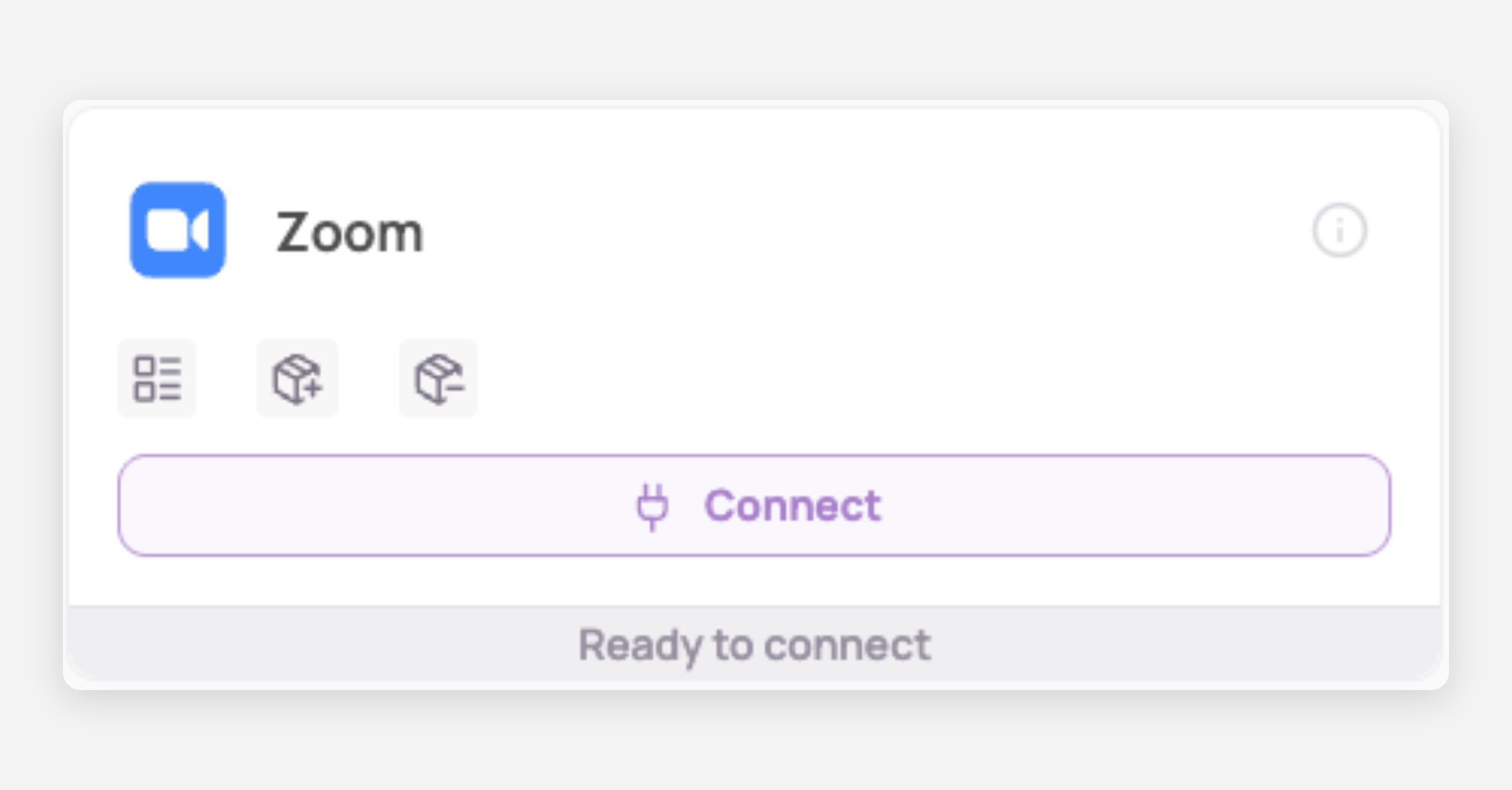
Under "Direct SaaS integrations" click on "Connect" for Zoom
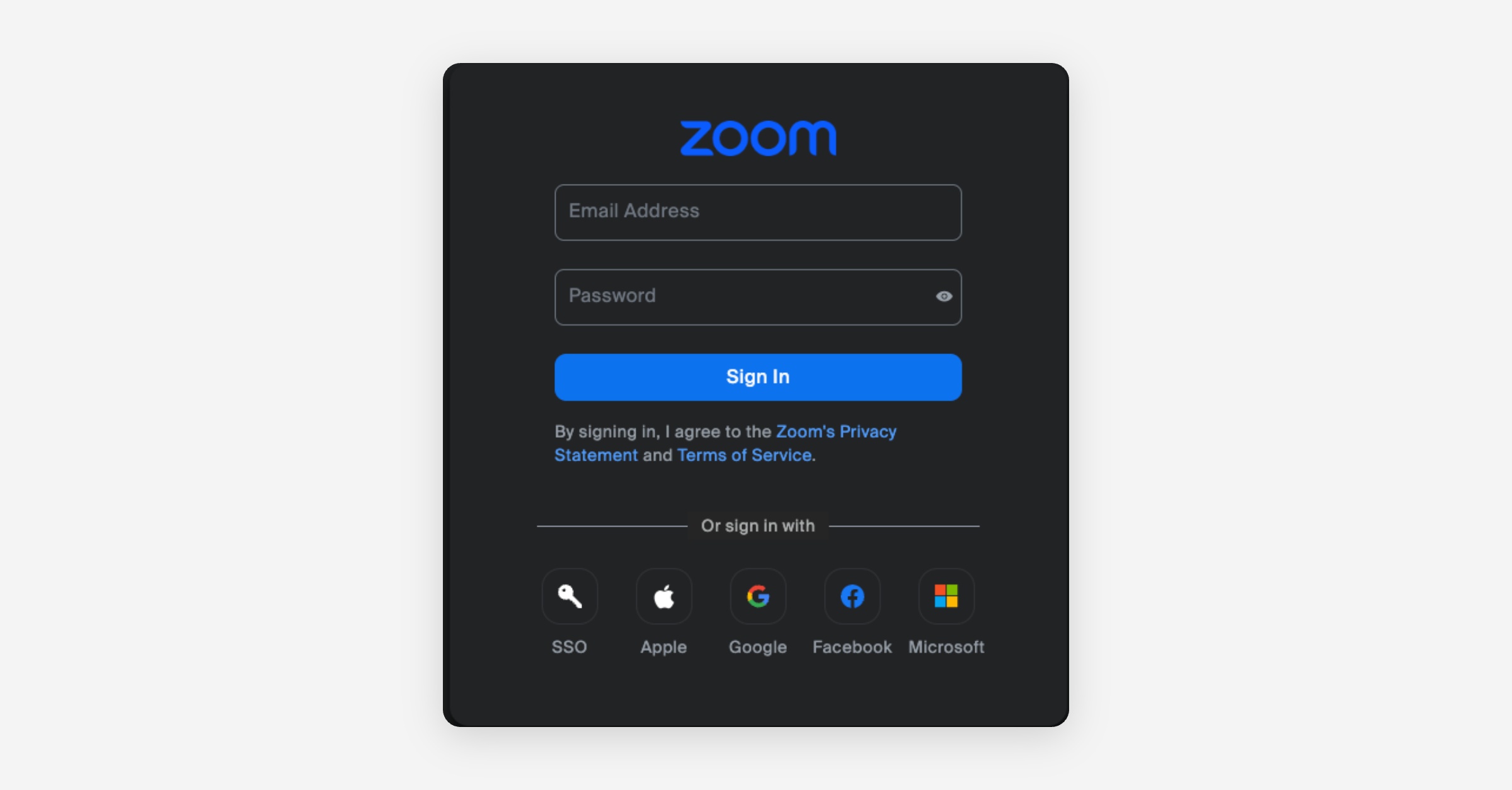
Log in to you Zoom account
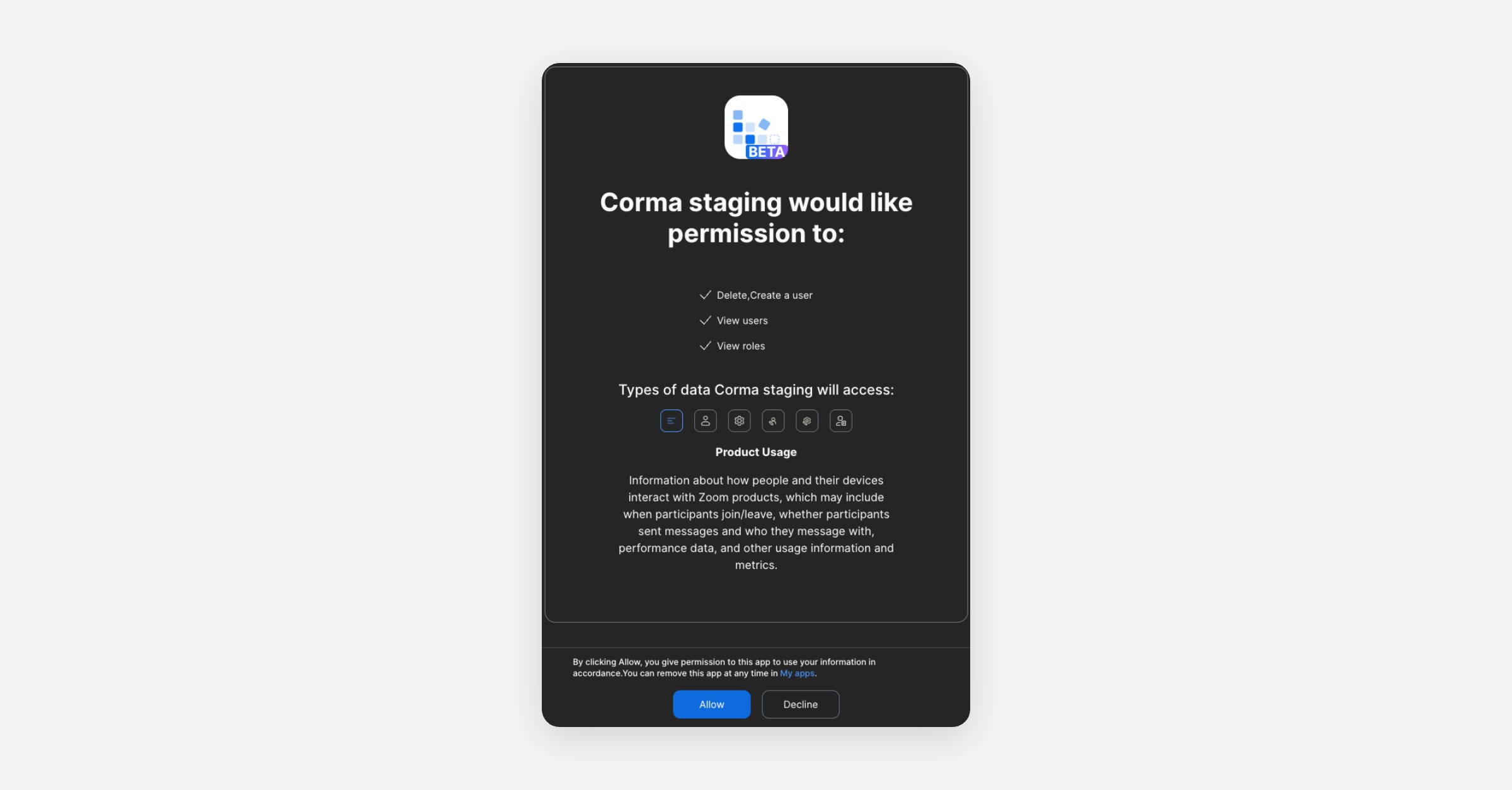
Give access to Corma
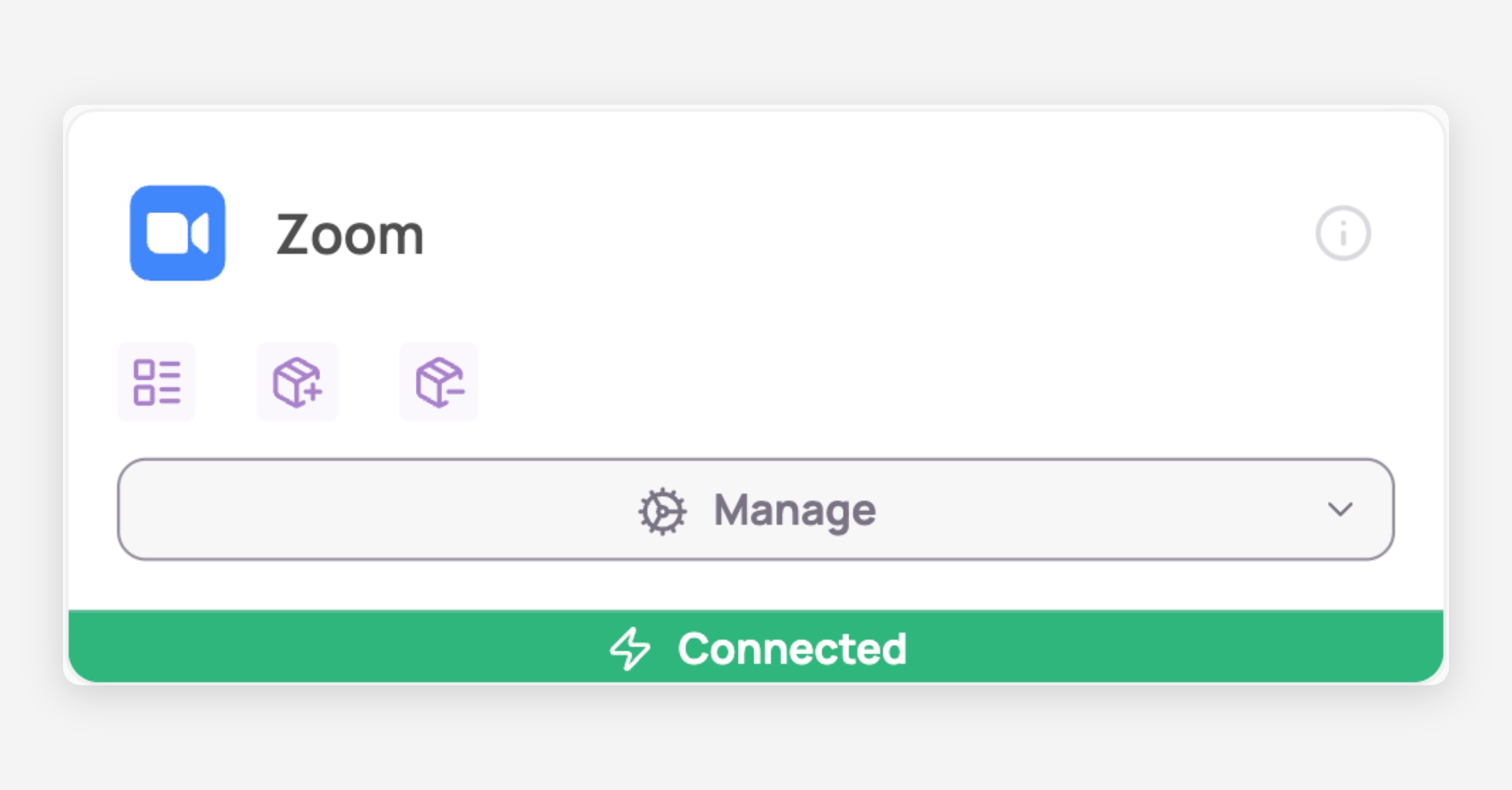
You've successfully connected Zoom to Corma!
Data should be synchronized within the next 24 hours and will be synched every day to your Corma app.
Usage : how to leverage the Zoom integration in Corma
Once connected Corma will sync automatically all your Zoom licenses in your Corma workspace under the “Zoom” application and will map those licenses automatically to the correct users from your IdP or HR tool
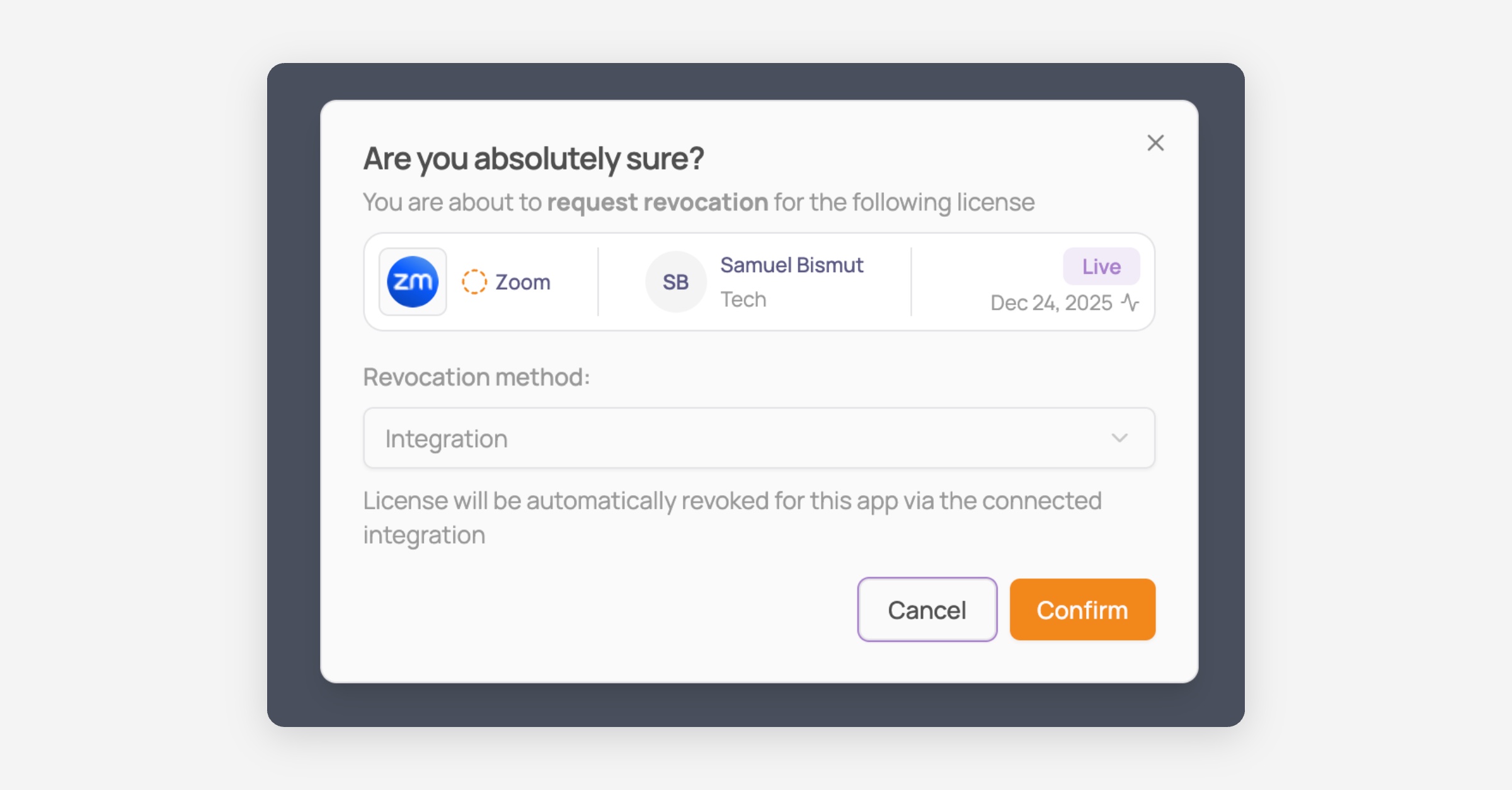
If you identify unused Zoom licenses that you’d like to re-allocate to other users you can click on the “Revoke” license button
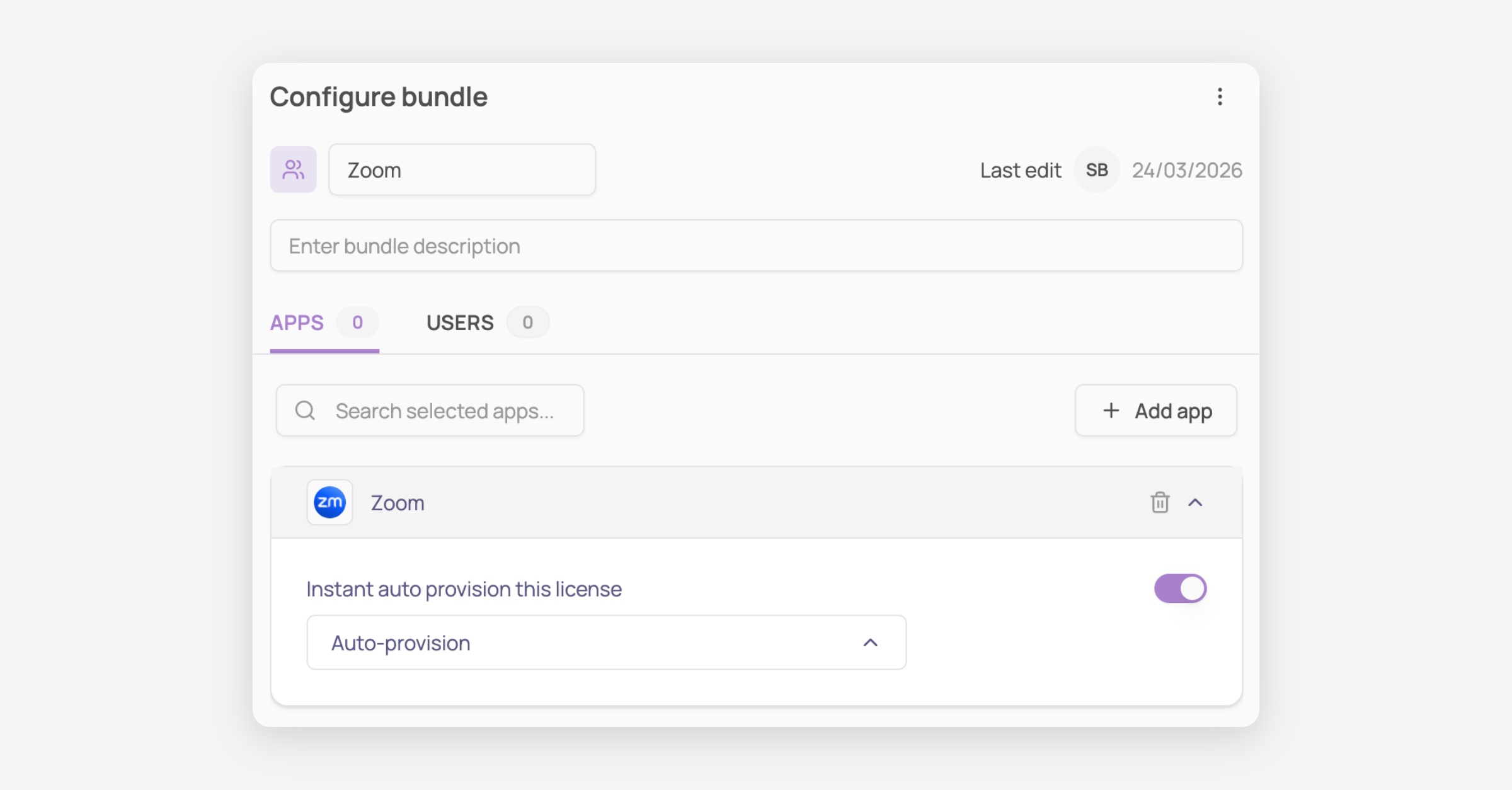
You can also add the Zoom application to a “Bundle” under “Provisioning” in Corma to auto-attribute a Zoom license to new-joiners at their onboarding automatically
To revoke the connection between Zoom and Corma
Go to Corma’s Integrations page
Find Zoom
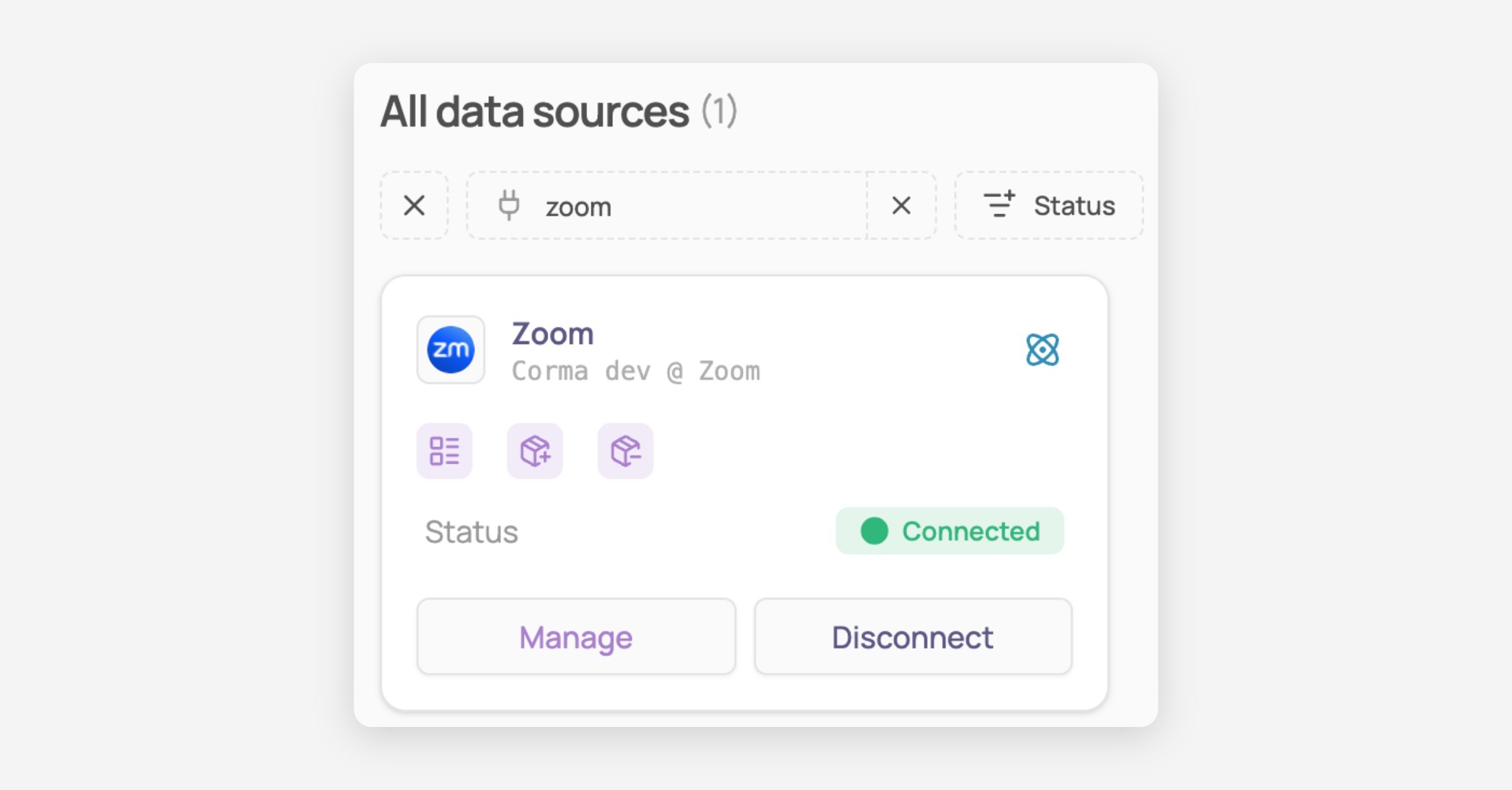
Click on Disconnect
Confirm the disconnection
Sign in to your Zoom account and go to the Zoom App Store.
Click Manage >> Added Apps or search for the Corma app.
Select the Corma app.
Click Remove.
Success! Corma no longer holds a token and refresh token to connect to your Zoom workspace.
Potential consequences of deletion?
After disconnecting the Zoom integration from Corma, your Zoom licenses will stop synching automatically into Corma. If a new license is attributed on Zoom, it will not appear automatically in Corma.
You will also no longer be able to automatically (de)provision Zoom licenses from Corma
How user data is handled after deletion?
After deletion of the integration, your existing Zoom data will remain in Corma i.e. the list of Zoom licenses that had already been synched. If you wish to delete this information as well just go in Corma to Applications > Zoom > Delete app. All previously synched data of your Zoom workspace will be deleted from Corma (this action cannot be undone, you will need to reconnect Zoom to Corma to restore the data).
Was this helpful?