
How to connect Okta for SAML SSO
Configure SAML single sign-on between Okta and Corma. Start from How to setup SAML SSO, which covers the Corma side, then come back here. You need an Okta administrator account and a Corma workspace admin account.
Step 1: Create the SAML app integration
In the Okta admin console, open Applications → Applications and click Create App Integration.
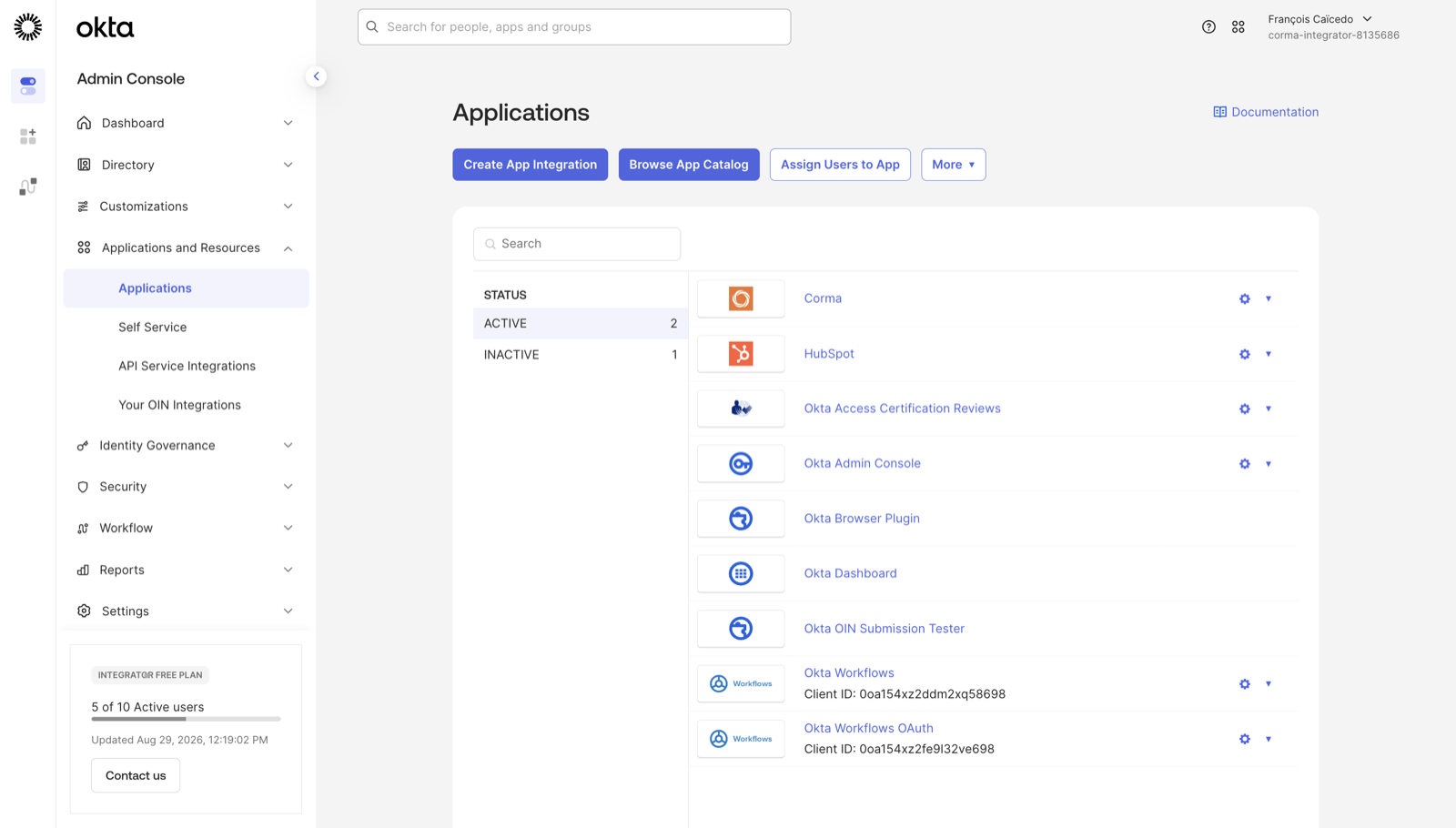
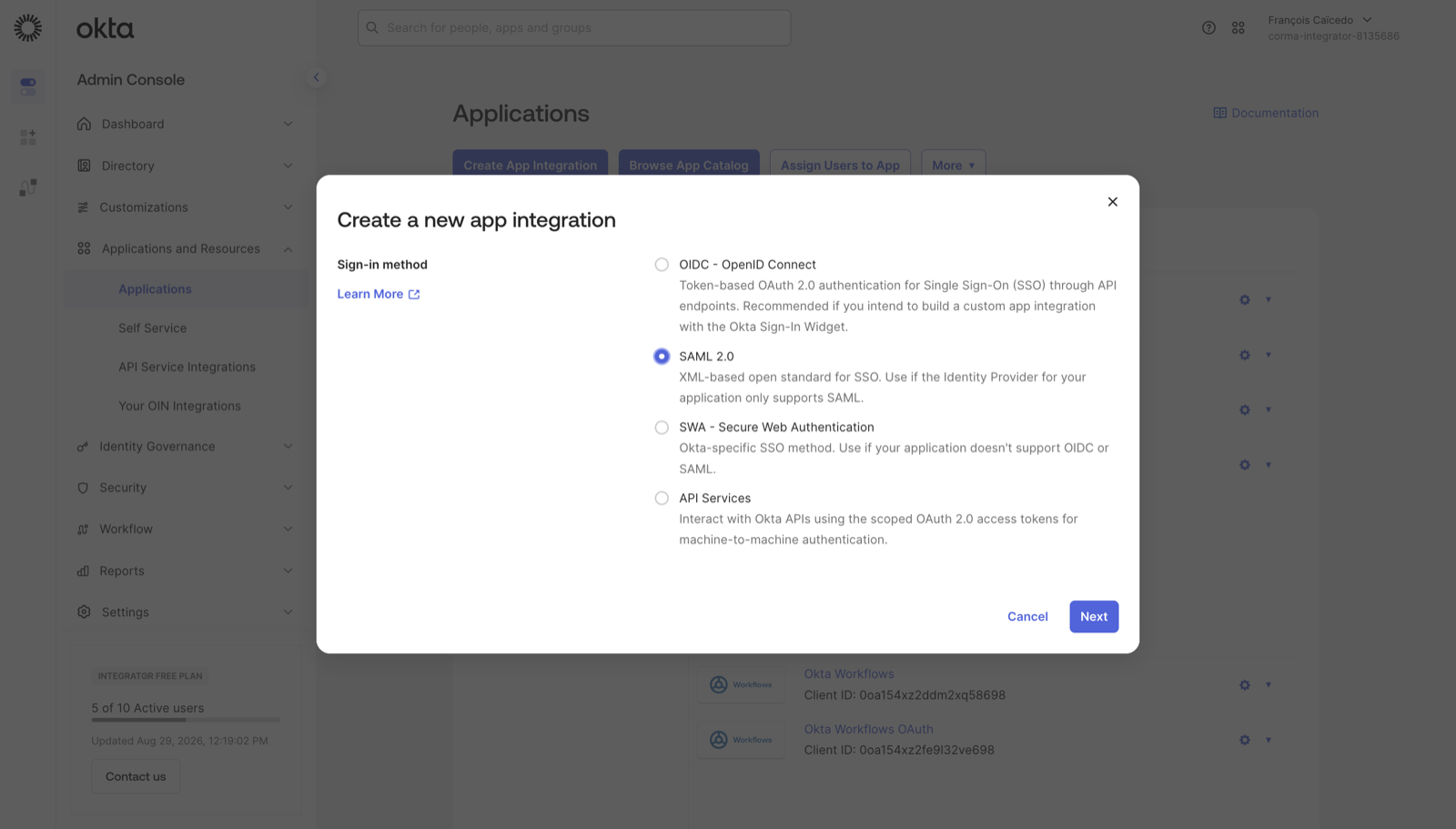
Choose SAML 2.0 as the sign-in method and click Next.
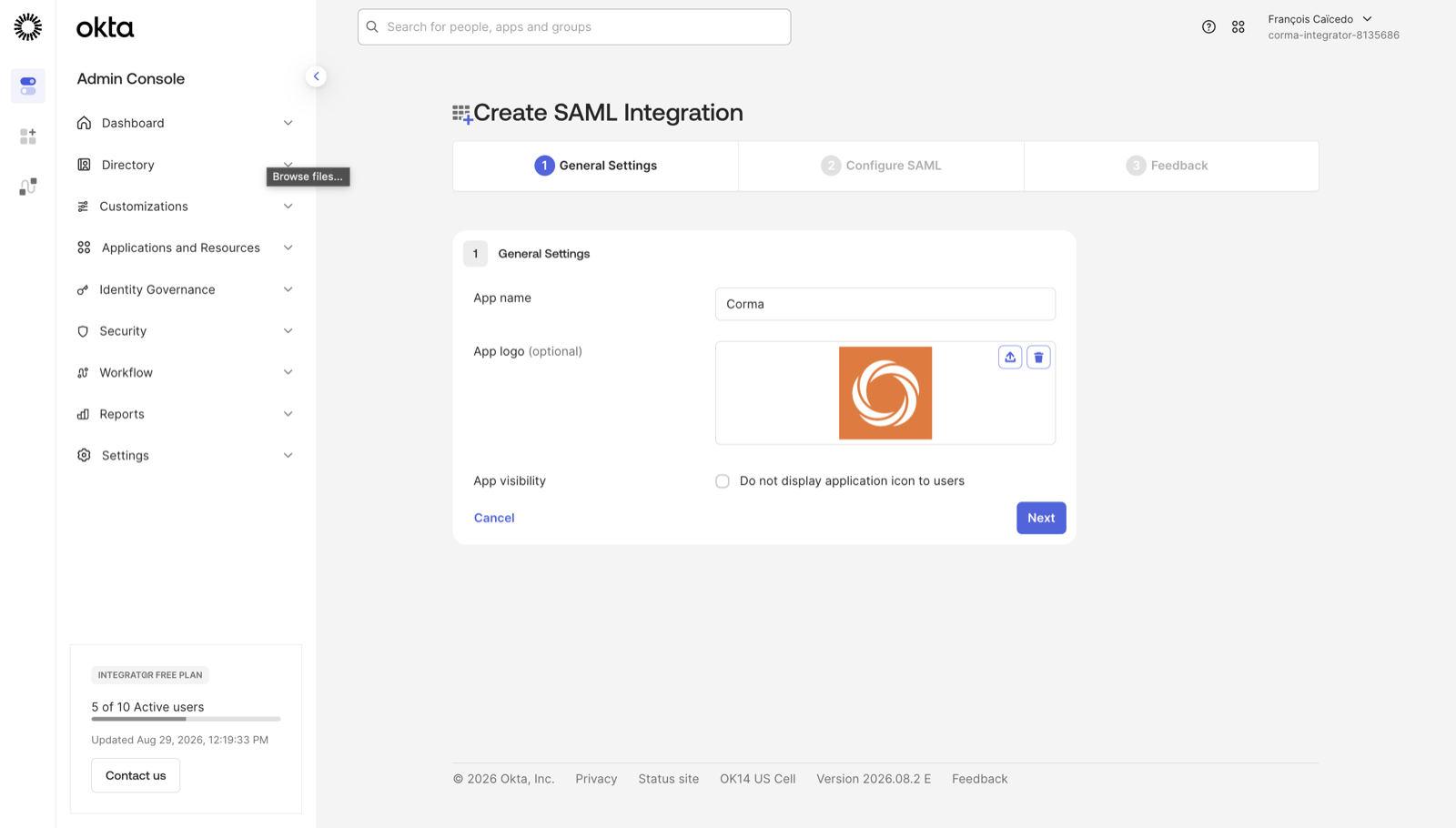
In General Settings, name the application Corma, add a logo if you like, and click Next.
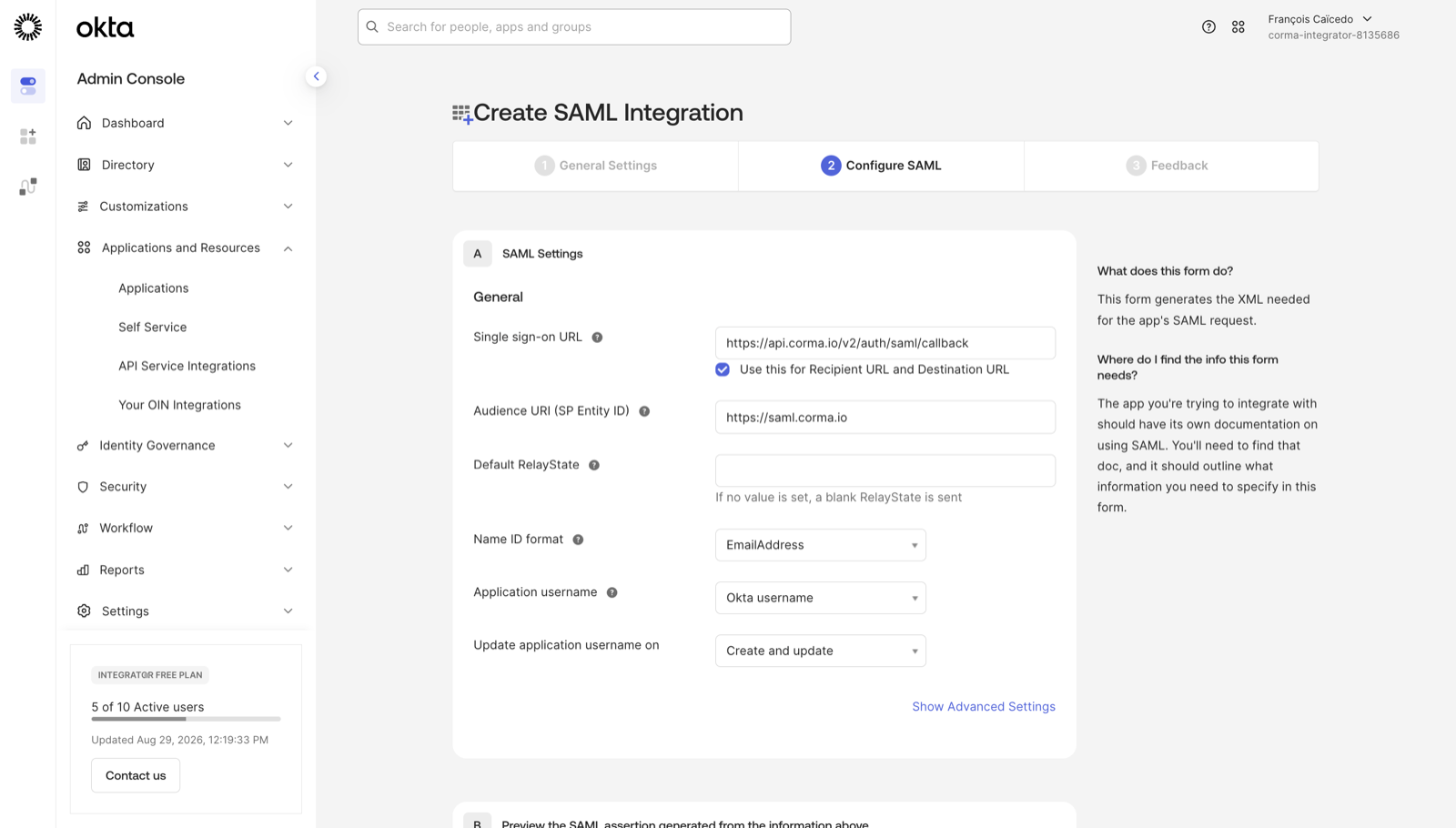
In Configure SAML → SAML Settings → General, enter the values shown with copy buttons in Corma under Settings → Security → SAML.
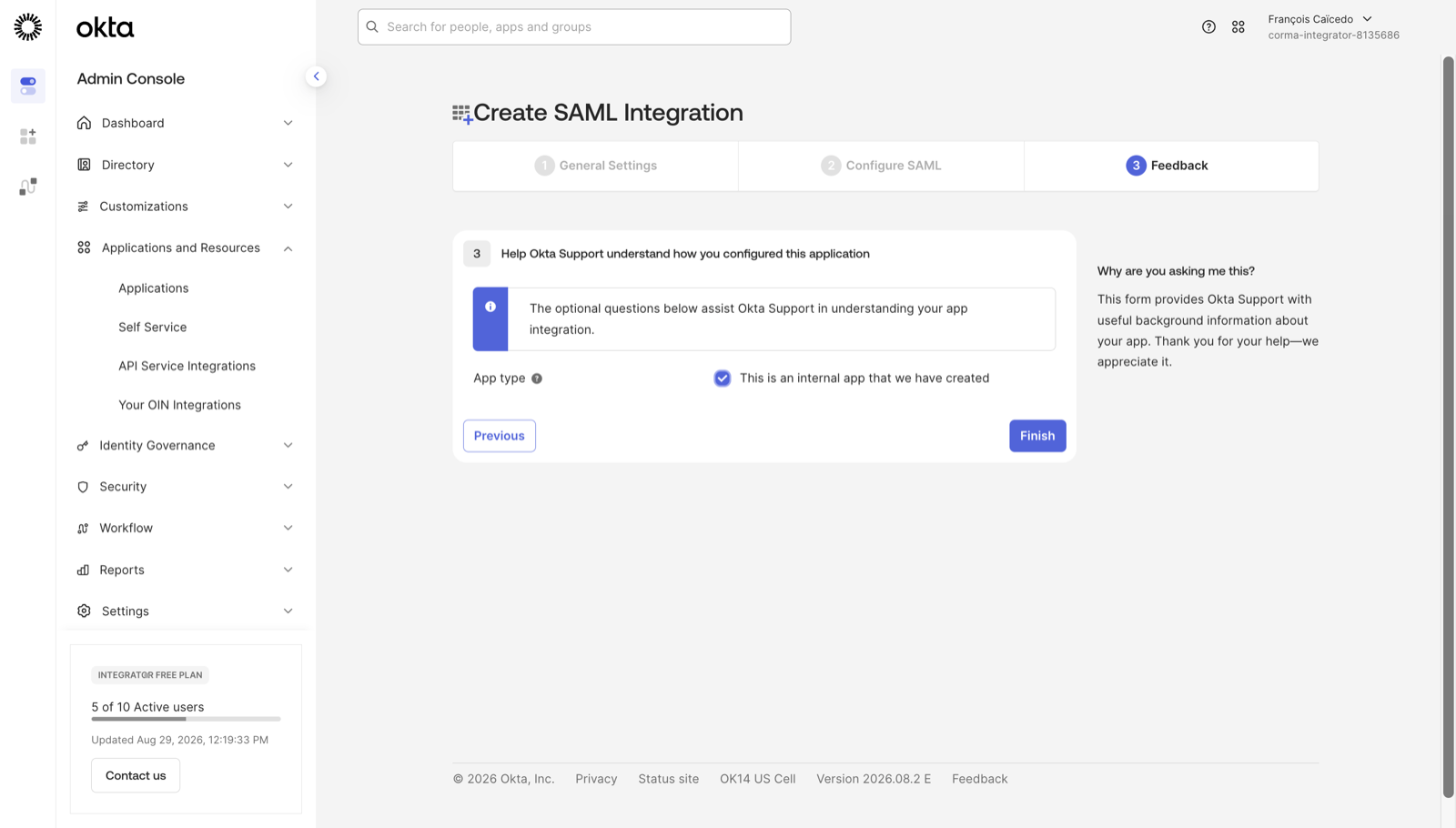
Click Next. On the Feedback screen, select This is an internal app that we have created and click Finish.
Okta field | Value |
|---|---|
Single sign-on URL | The SSO URL (ACS) value, |
Use this for Recipient URL and Destination URL | Keep checked |
Audience URI (SP Entity ID) | The Audience URI value, |
Name ID format |
|
Application username | Okta username |
Step 2: Add the attribute statements
Corma reads the user's email and name from SAML attributes, and a new Okta app sends none.
Open Applications → Applications, select the Corma app, then the Sign On tab.
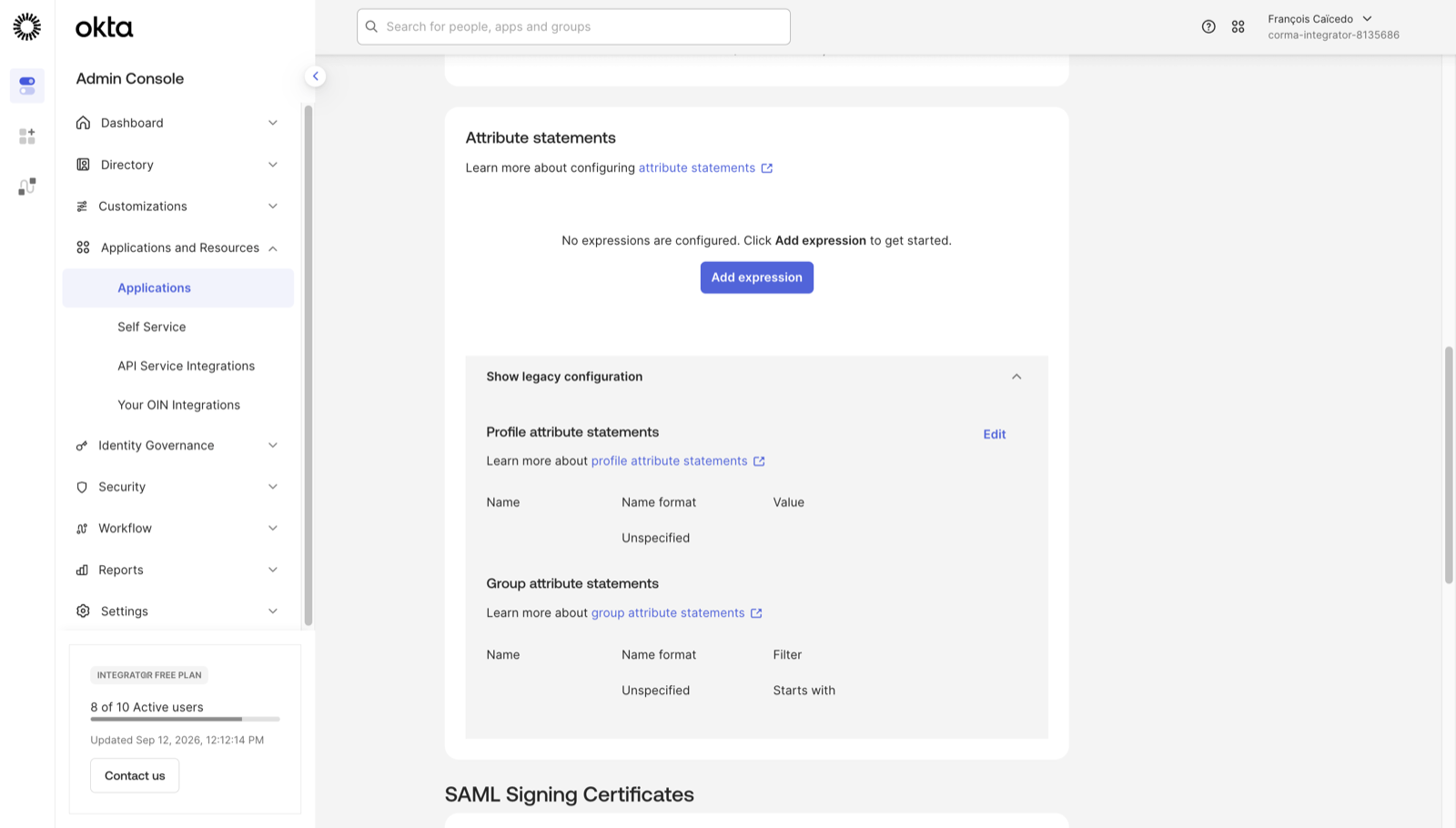
Scroll to Attribute statements and expand Show legacy configuration.
Next to Profile attribute statements, click Edit and add three rows, then click Save.
Name | Name format | Value |
|---|---|---|
Unspecified |
| |
firstName | Unspecified |
|
lastName | Unspecified |
|
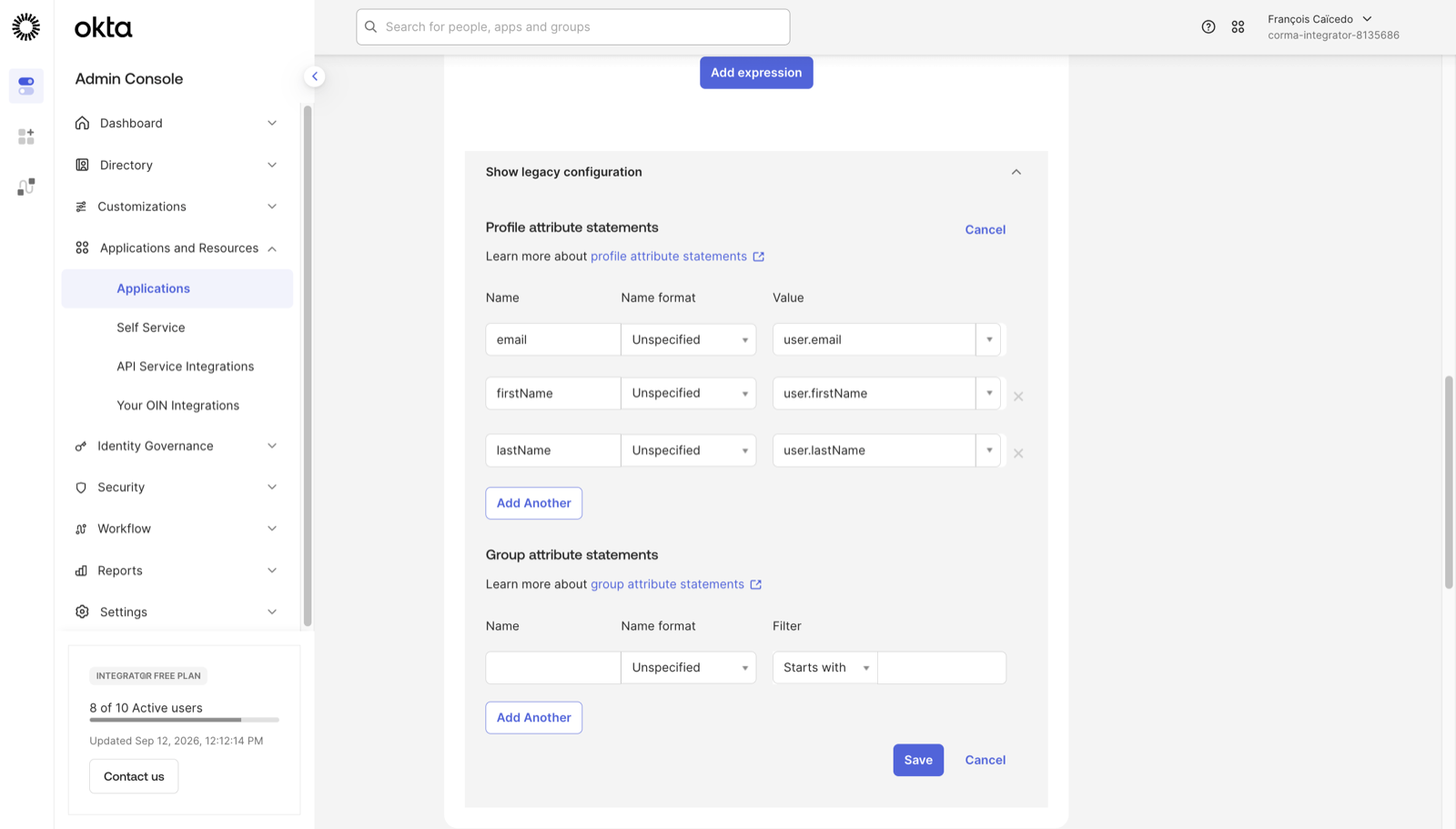
Without the email attribute, Corma rejects the sign-in with Unauthorized SAML connection. The newer Add expression control above the legacy section produces the same attributes if you prefer it, one expression per attribute with the same names and values.
Step 3: Copy the metadata URL
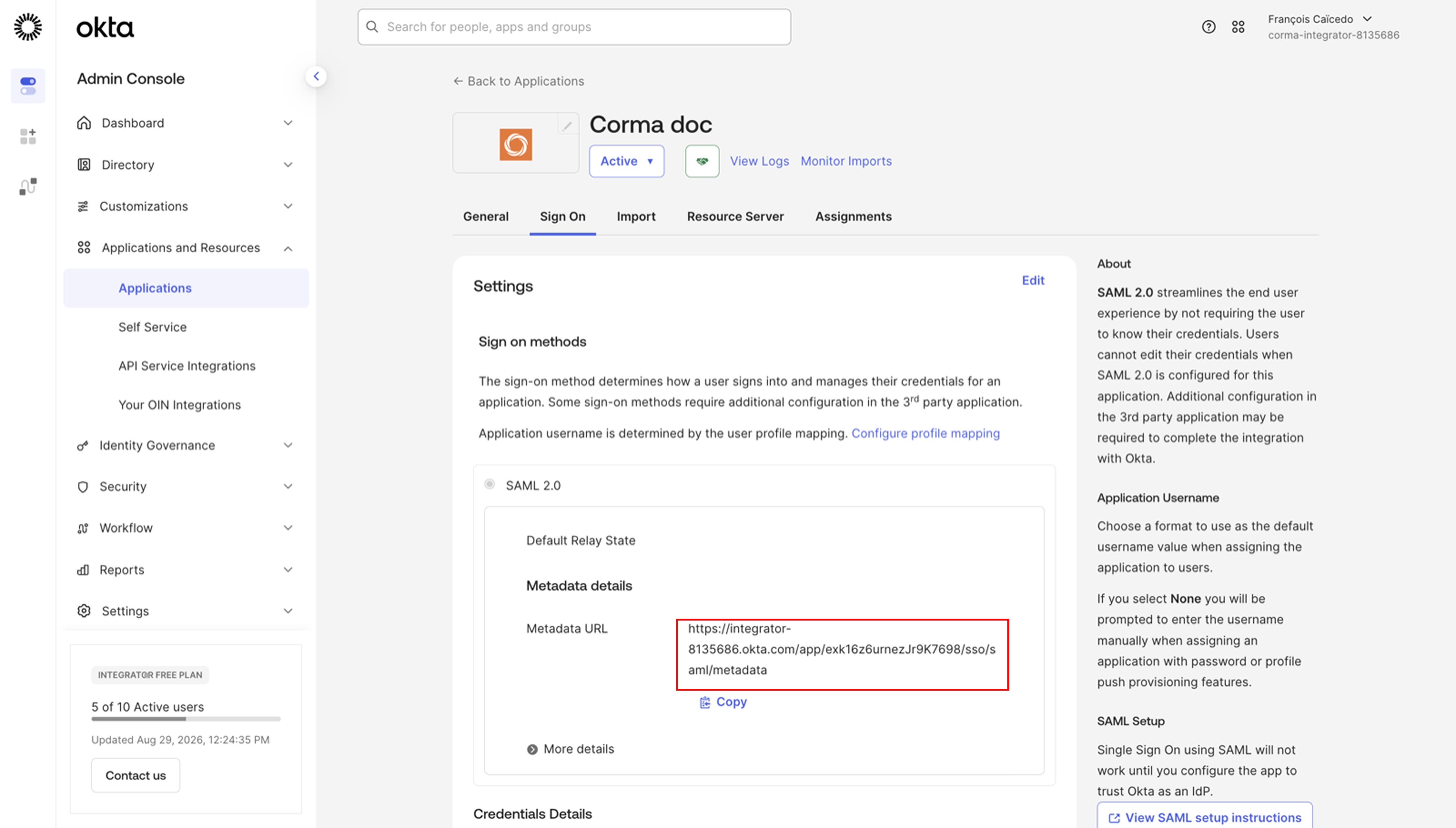
On the same Sign On tab, under SAML 2.0 → Metadata details, copy the Metadata URL.
Step 4: Connect Okta in Corma
In Corma, open Settings → Security → SAML and turn on Enable SAML SSO.
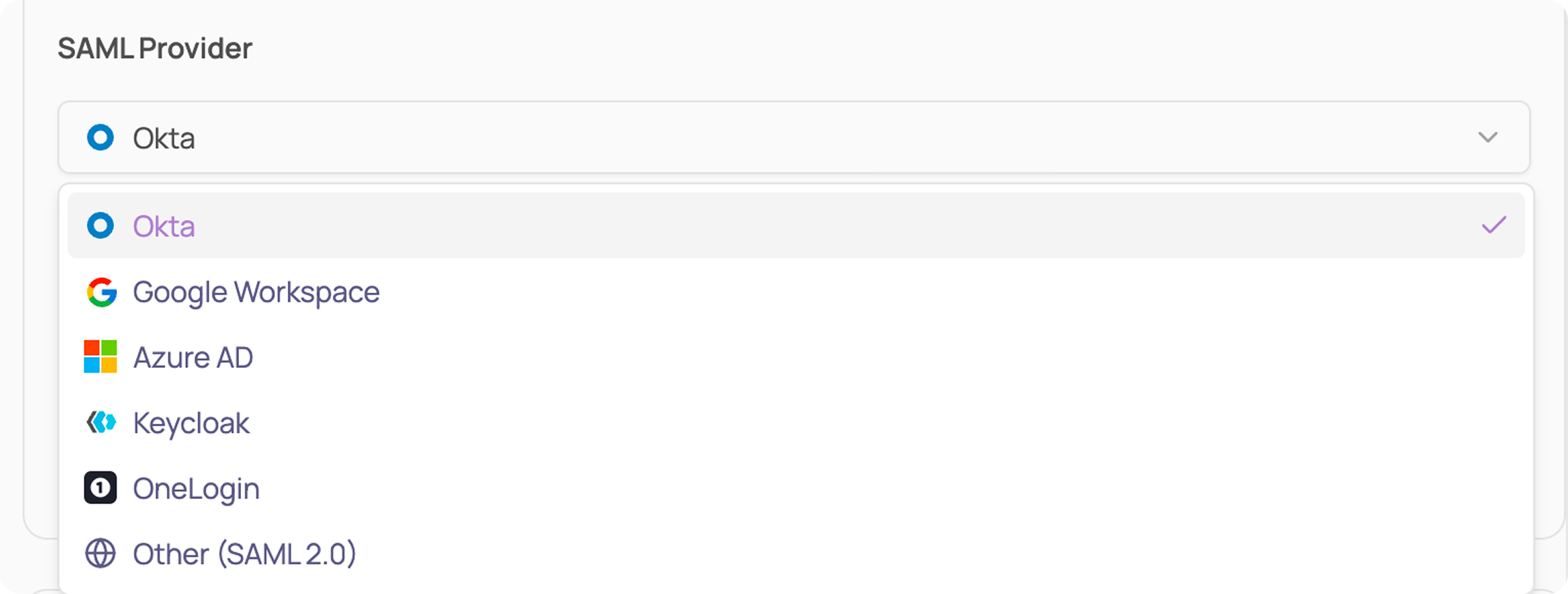
Select Okta as the SAML provider.
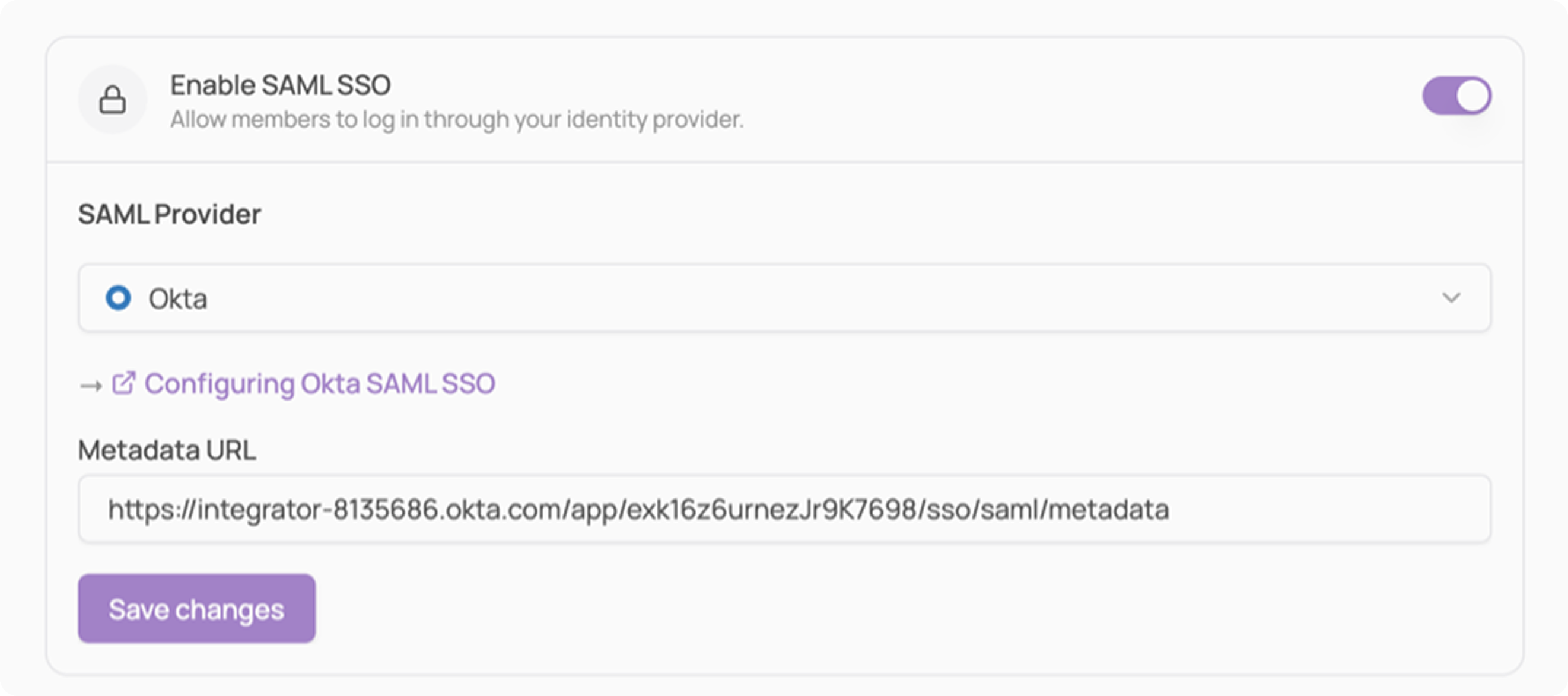
Paste the Metadata URL and click Save changes.
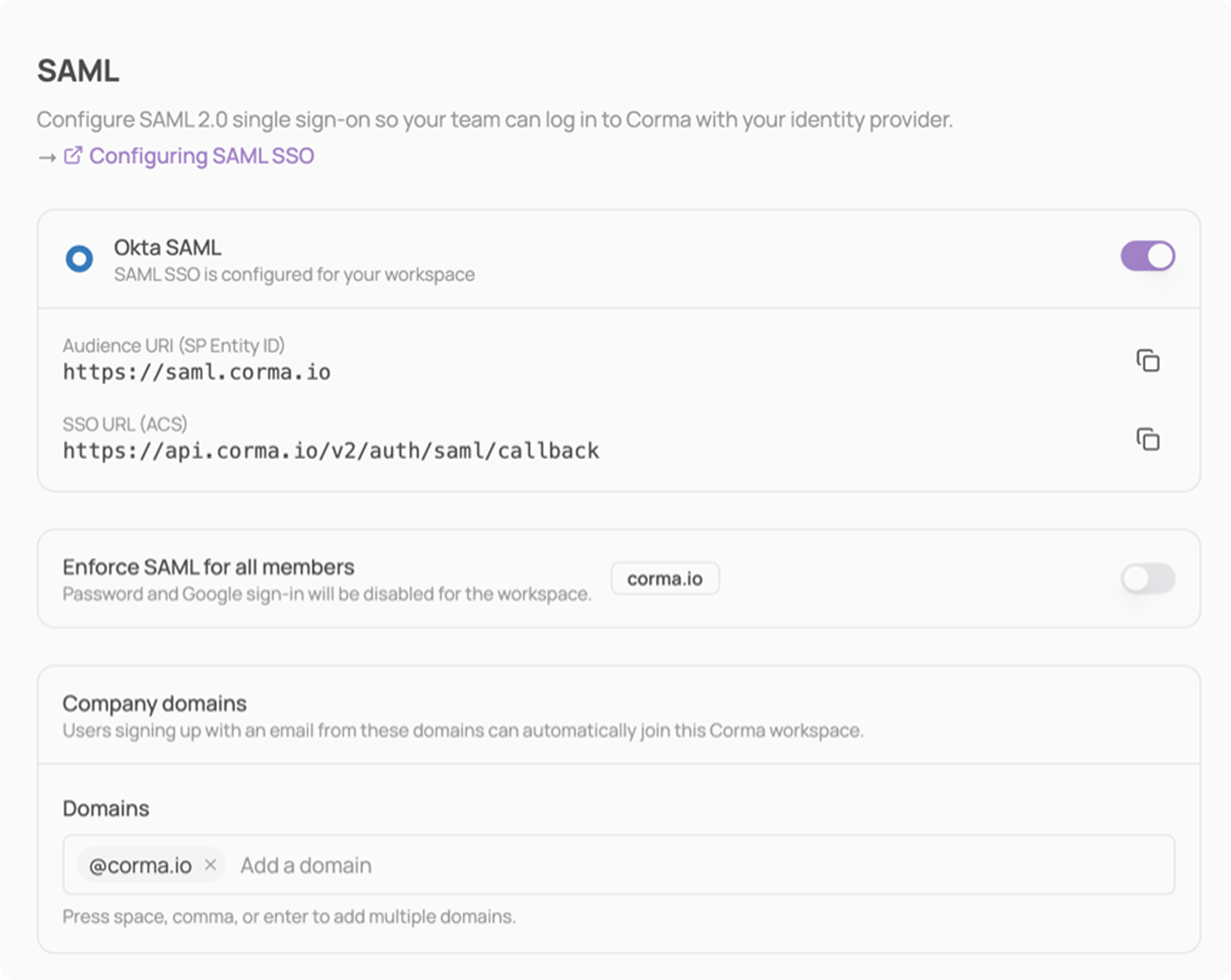
Once saved, the card shows Okta SAML, SAML SSO is configured for your workspace, with the Audience URI and SSO URL you registered in Okta.
Step 5: Assign users
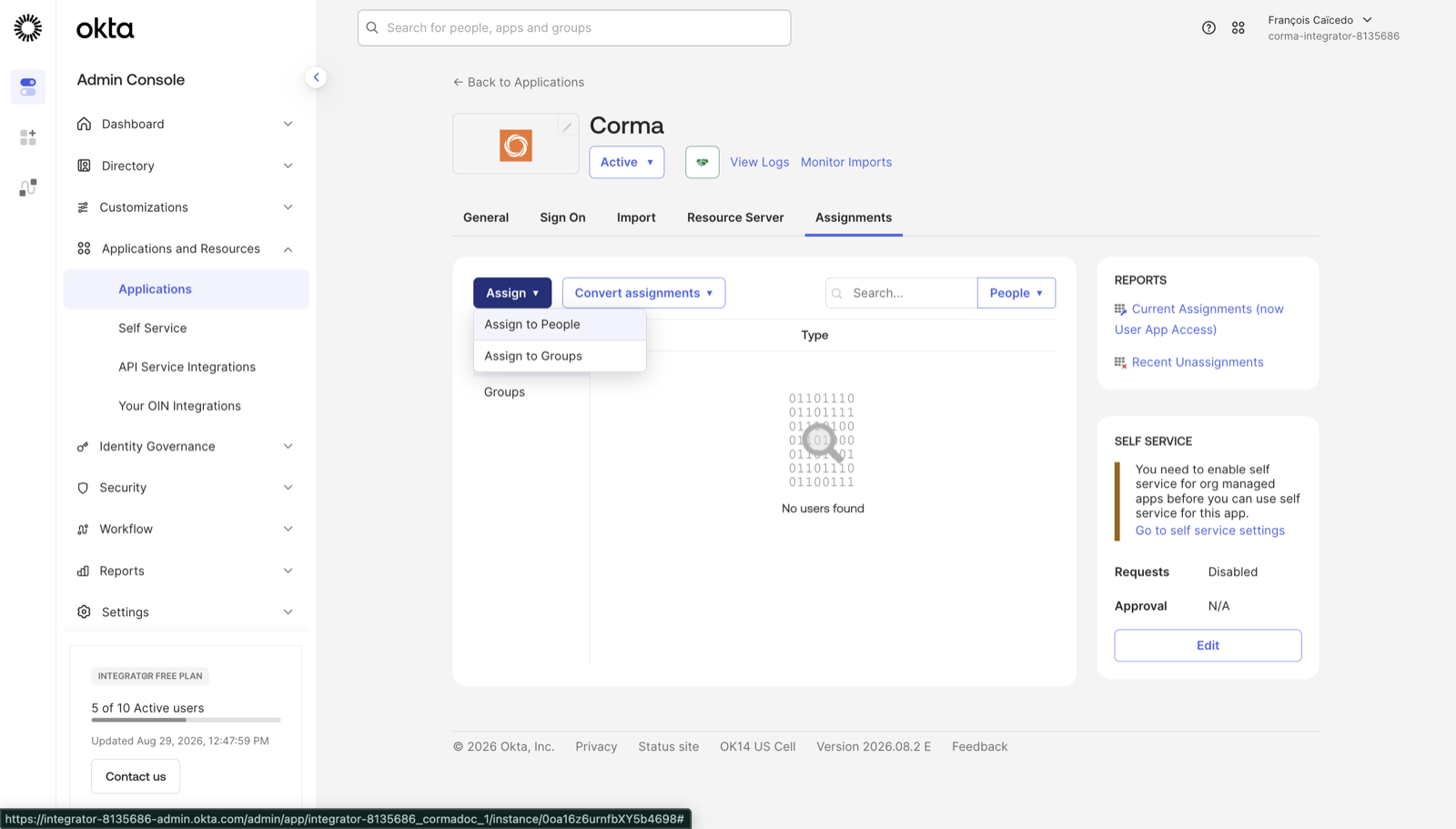
On the application's Assignments tab, click Assign → Assign to People (or Assign to Groups) and assign the users or groups who should access Corma.
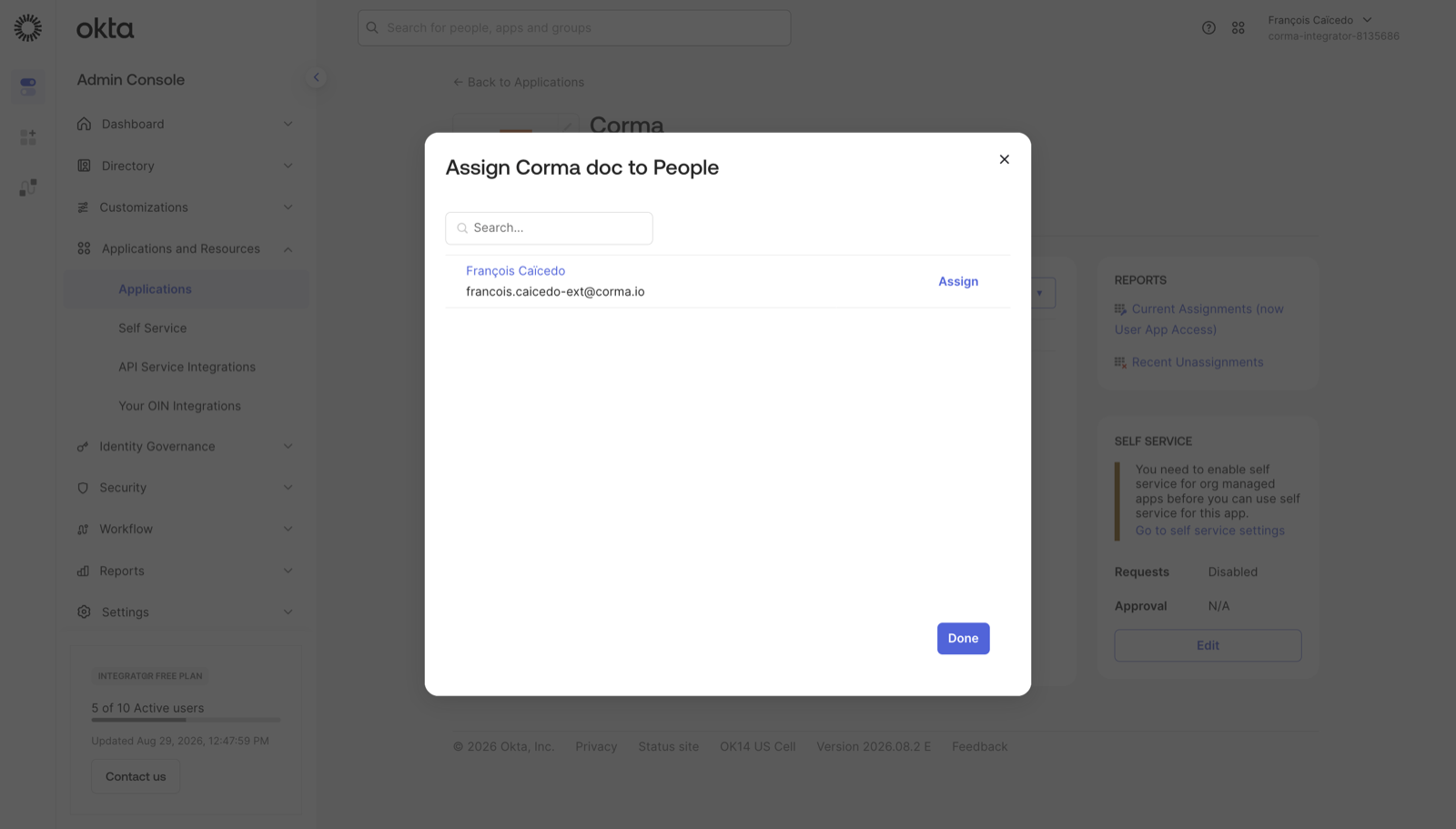
Assigned users can sign in from the Corma sign-in page with Sign in with SAML SSO. Unknown users join your workspace automatically on first sign-in.
Launching Corma from the Okta dashboard
Corma uses SP-initiated SAML only, so the default Okta app tile starts an IdP-initiated flow and is rejected.
Either hide the tile, under General → App Settings → Application visibility → Do not display, or create an Okta Bookmark App pointing at
https://app.corma.io/signinso your team can launch Corma from Okta.
Was this helpful?