
How to use variables in workflows?
Every step produces information when it runs — a variable lets you reuse that information in later steps, instead of typing a fixed value that would only be correct for one person.
Referencing a step's output
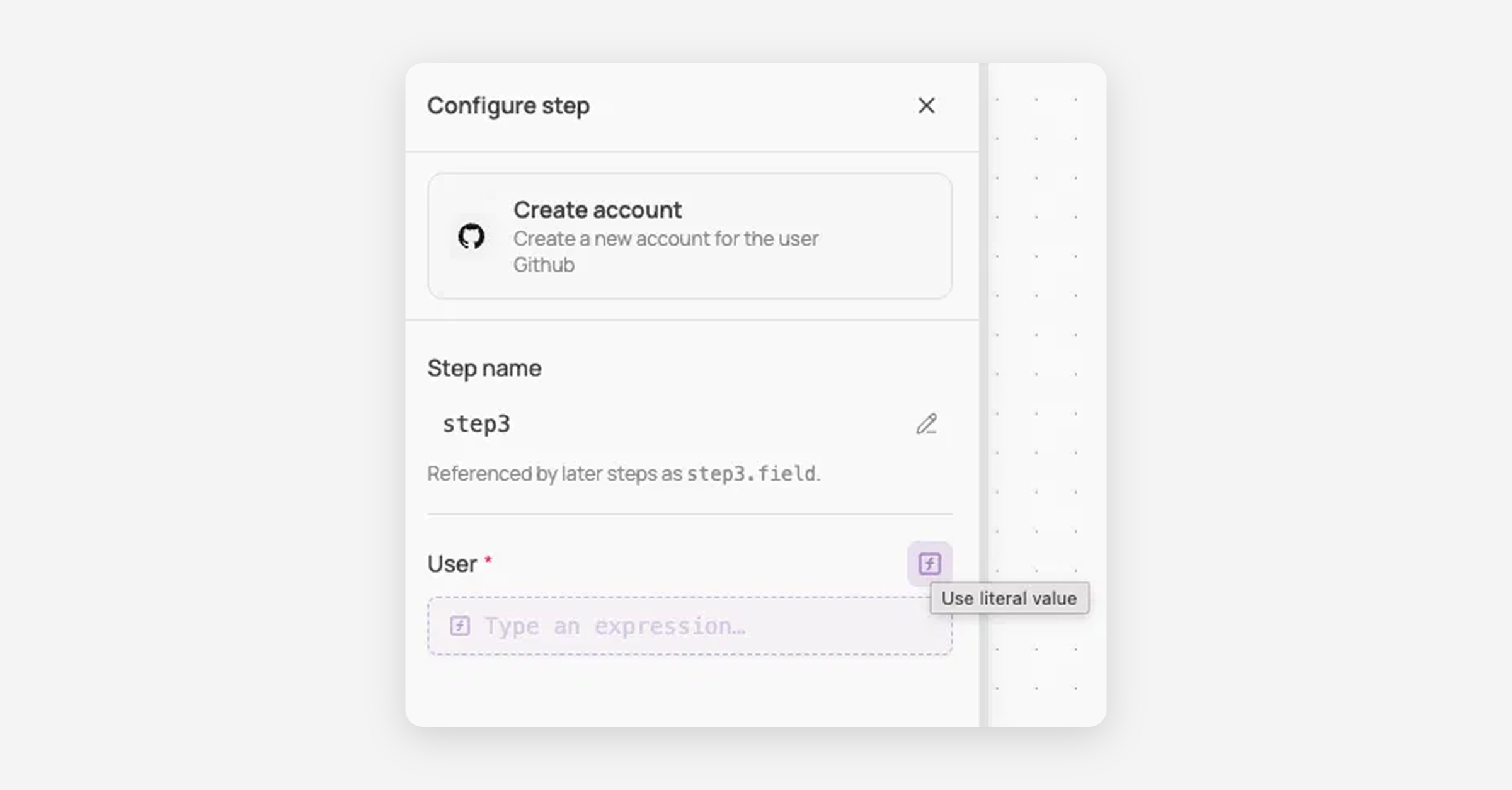
Every step has an editable Step name (e.g. step1, step2), shown at the top of its configuration panel. Later steps reference its output as stepName.fieldName — for example, step1.username or step1.email.
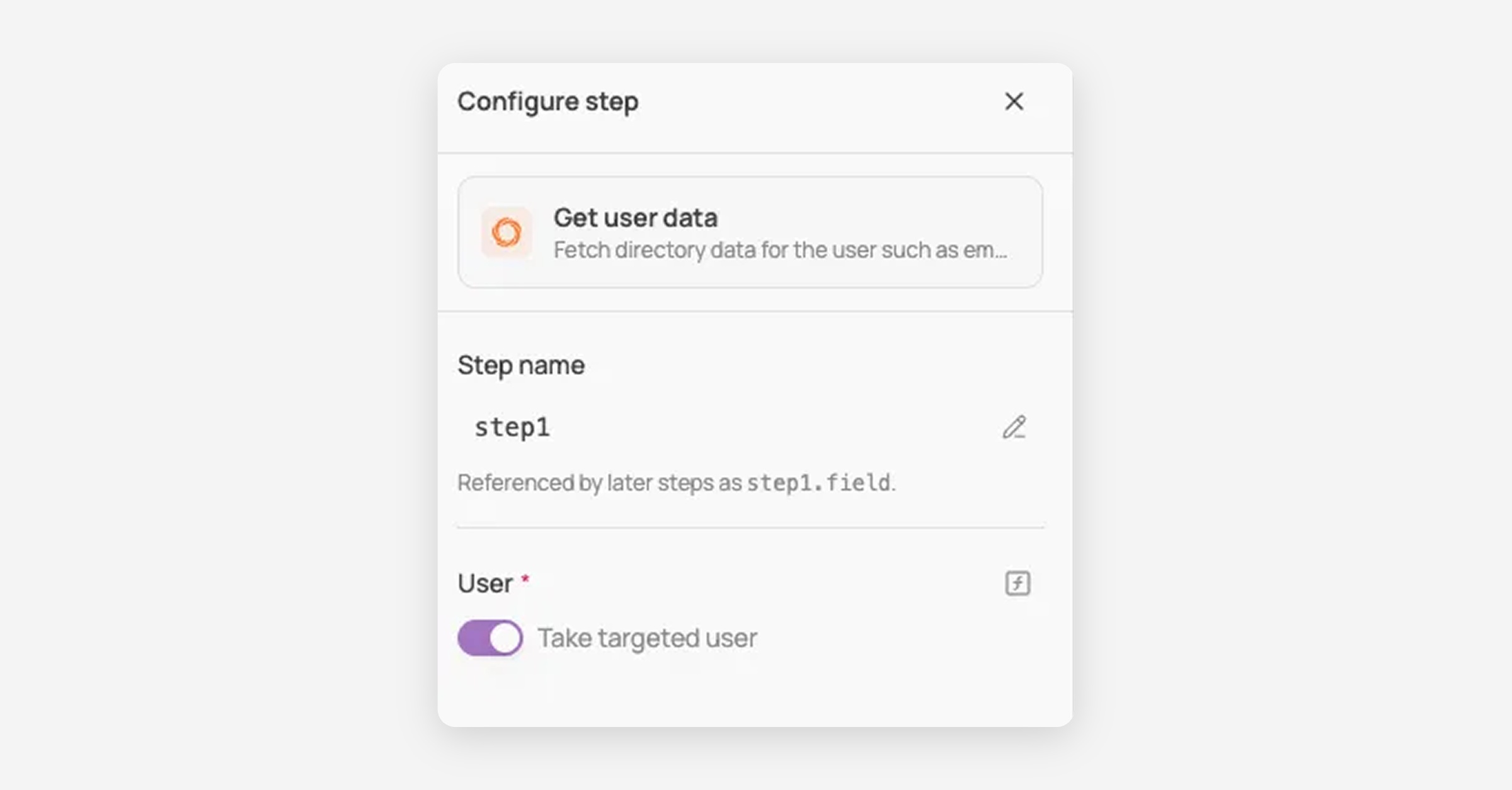
The variables available to you depend on what steps exist earlier in that specific workflow; the list isn't fixed. Add a new step, and its output immediately becomes available to every step after it, with no extra setup.
A step can only reference output from steps before it. Referencing a step that comes later shows "Unknown variable path," which just means that step doesn't exist yet from this point in the workflow.
Some triggers set a target user or target license for the workflow — hover the small icons next to a trigger's name to see which.
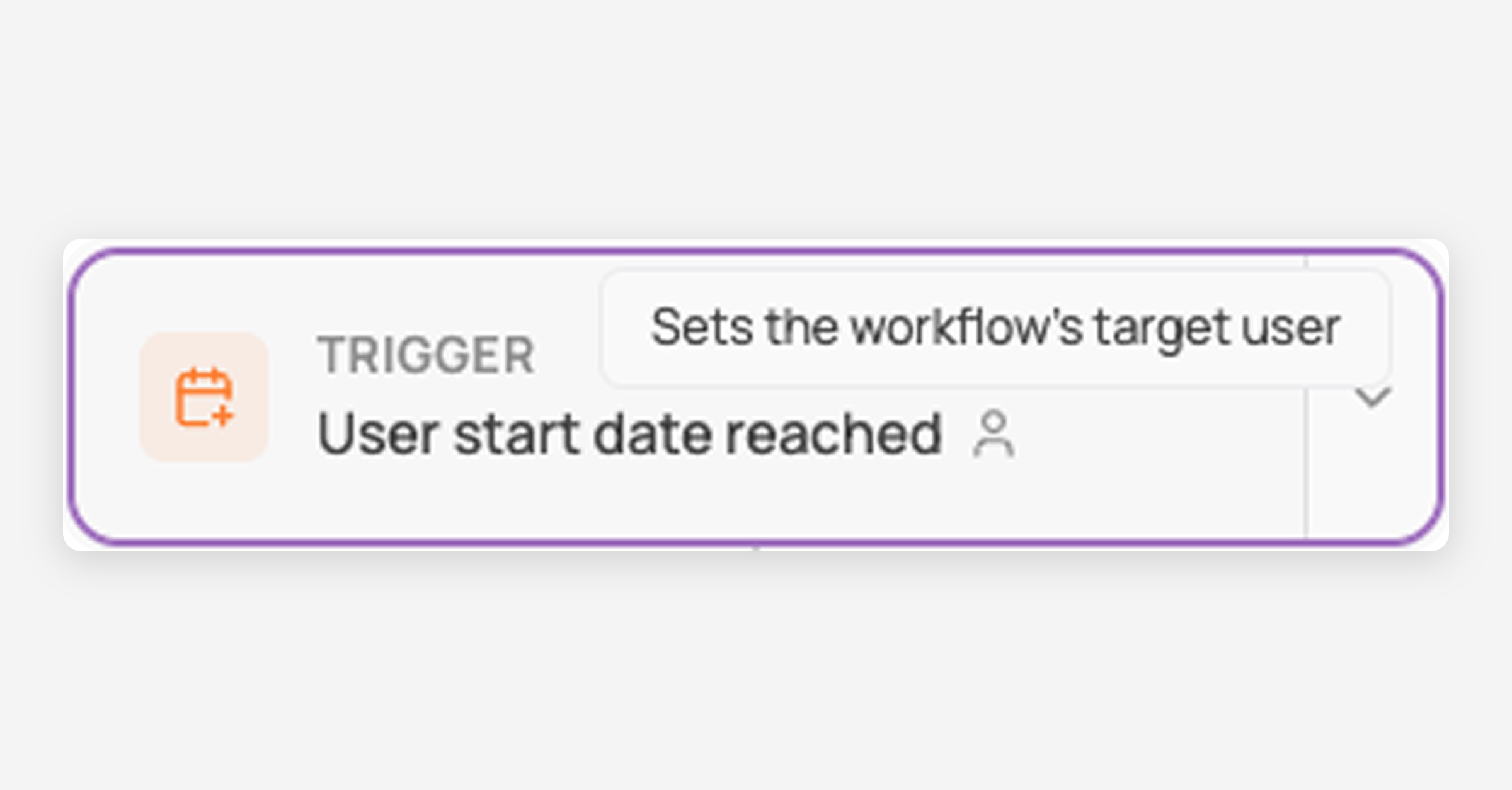
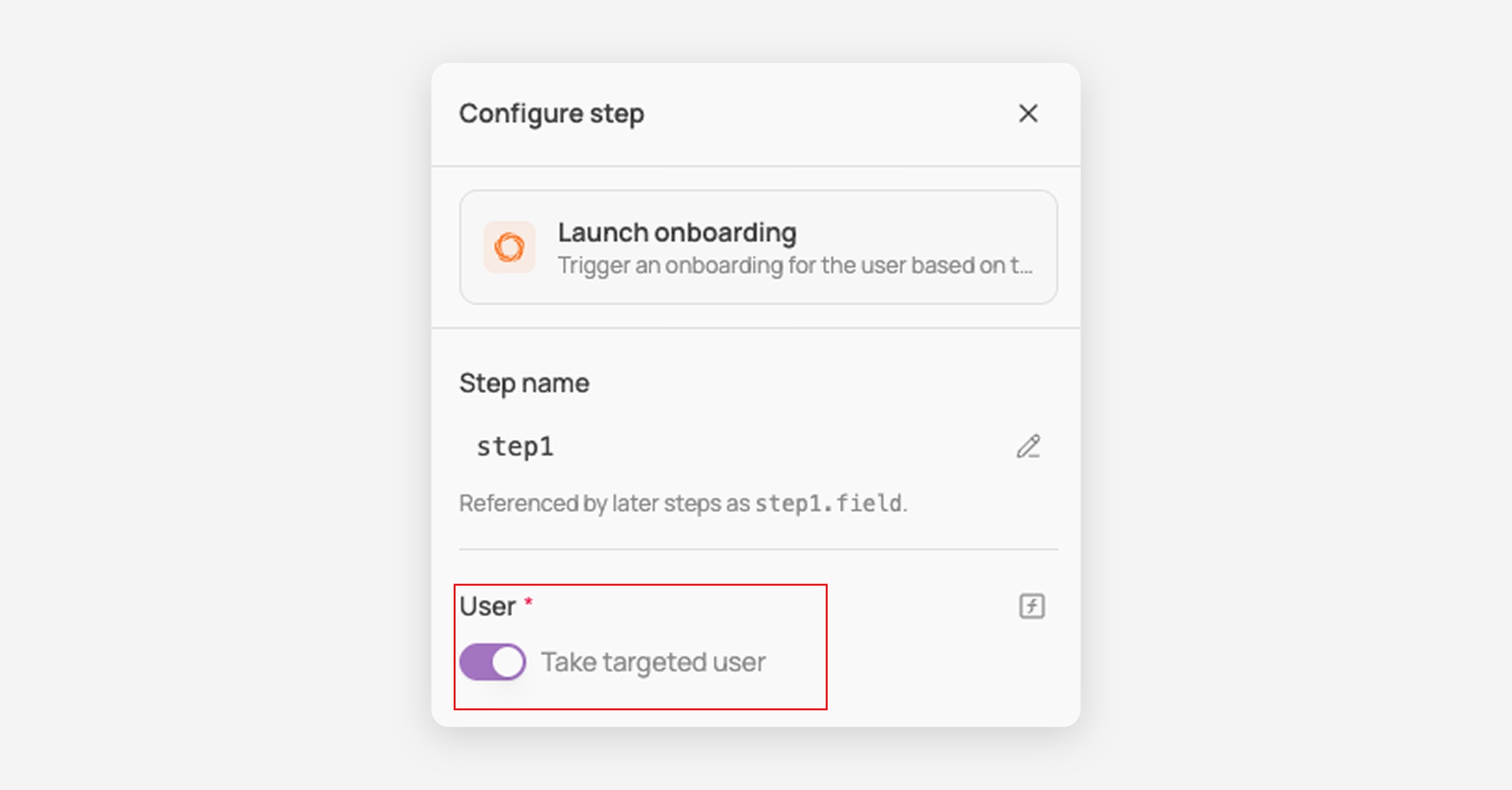
Triggers that set a target user expose context.targetUser.username and context.targetUser.email with no earlier step needed, and any action's "User" field gains a "Take targeted user" toggle — switch it off to pick a different user manually instead.
Triggers that set a target license (like License status changed) expose context.targetLicense.appId, .appAccountId, and .userId the same way.
Triggers that don't set a target user at all, like Manual trigger, show a plain user picker with no toggle — there's no target user to take.
Inserting a variable
Some fields let you fill in a fixed value, or switch to a dynamic one — which method you use depends on the field.
Using the [f] icon
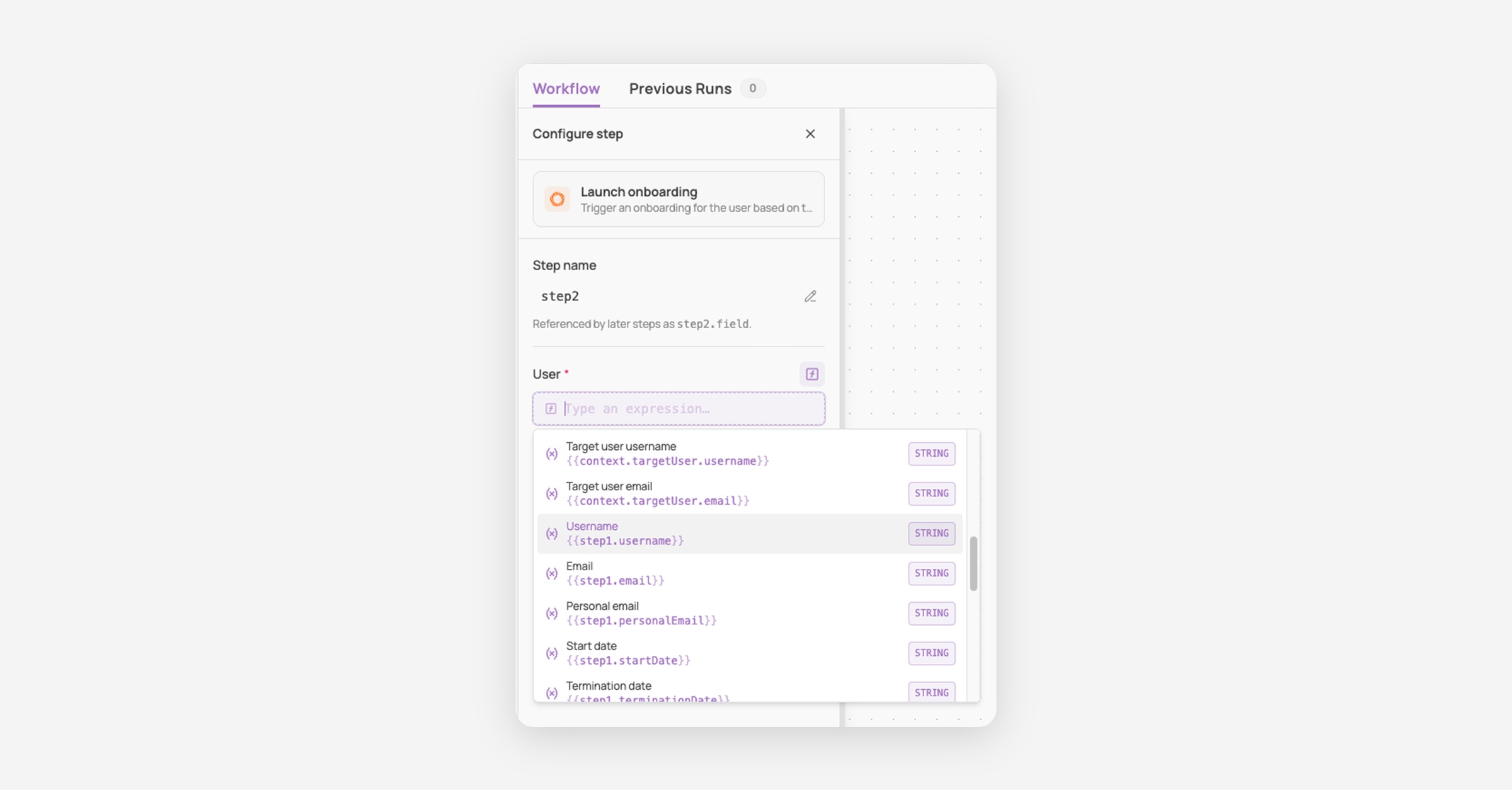
A field's default appearance varies: a toggle (e.g. "Take targeted user"), a dropdown, or a text box. Click the [f] icon next to its label to switch it into an expression instead.
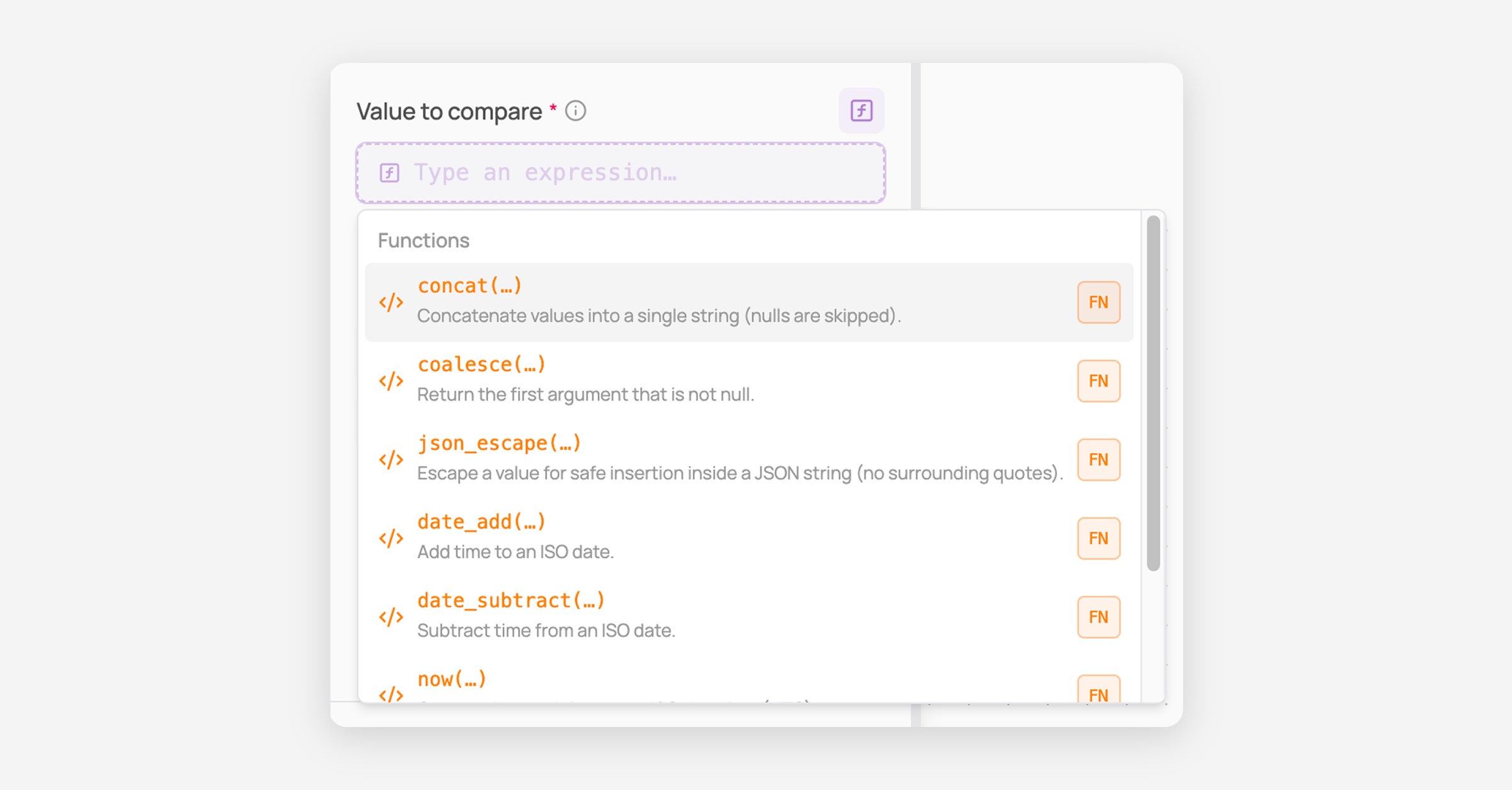
Type any text to open a picker of matching variables (tagged with their type, e.g. STRING, so you can match it to what the field expects) and built-in functions like concat(), coalesce(), jsonescape(), dateadd(), date_subtract(), and now().
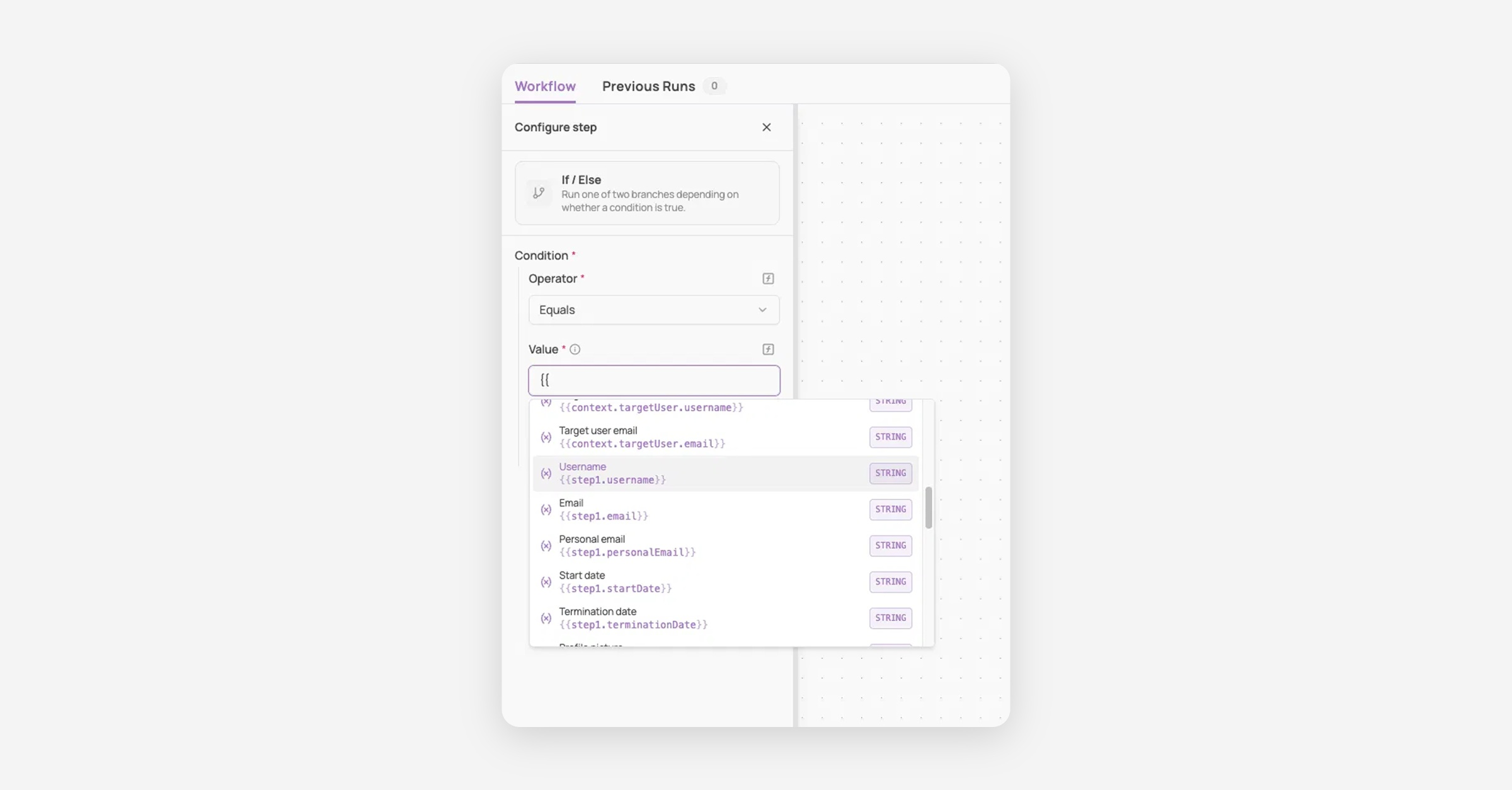
Selecting a variable inserts it directly (e.g. step1.username), with no {{ }} needed.
Clicking [f] again reverts the field to its fixed value. This also clears whatever was entered in expression mode, so switching back and forth loses your input — pick the right mode first rather than toggling to check.
Typing {{ inline
This works inside text fields: fields meant to hold a full sentence or message, like an email body, rather than a single value.
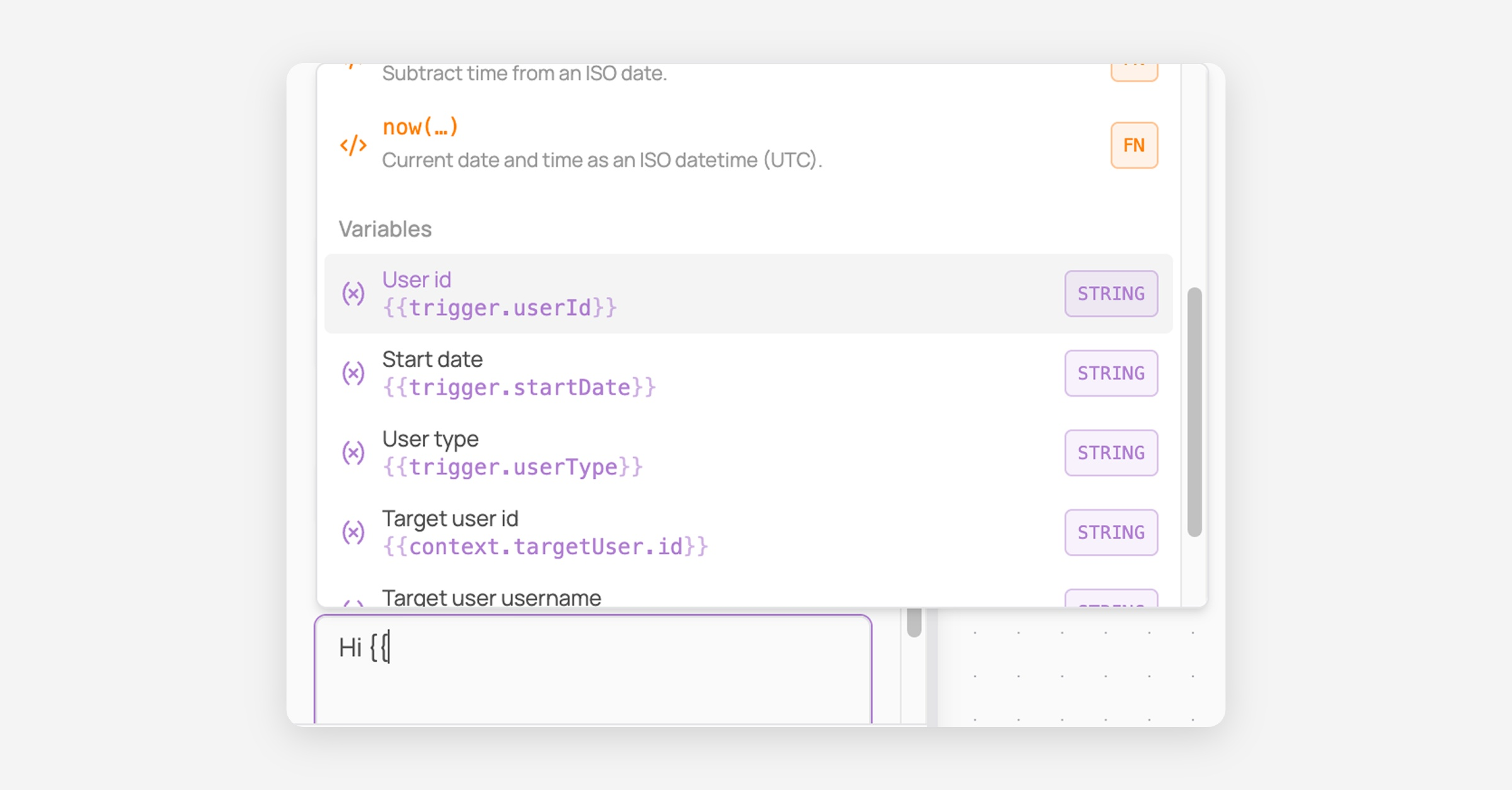
Click into the text field and type {{ to open the same picker used with the [f] icon.
Select a variable to insert it inline, keeping the rest as plain text — e.g. "Hi {{step1.username}}, welcome!"
When the workflow runs, the placeholder is automatically swapped for that person's real value — so the email actually sent might read "Hi Maria, welcome!" instead of the raw {{ }} text.
Quick rule: writing a full sentence? Type {{. Filling in a single value? Click [f].
Tip: Give steps clear names as you build (e.g. get_user instead of step1) by clicking the pencil icon next to the Step name field — it makes variable references much easier to read at a glance later.
Was this helpful?