
How to create and manage saved views
A saved view stores a table exactly as you set it up: your filters, your columns, and on Tickets your board or table layout. This guide covers creating a view, switching between views, updating one, and sharing it with your workspace.
Create a view
Go to one of the main pages: Applications, Users, Licenses, Contracts, or Tickets.
Set the table up the way you want it. Apply filters with the funnel icon, and choose your columns with the sliders icon. On Tickets, pick board or table too.
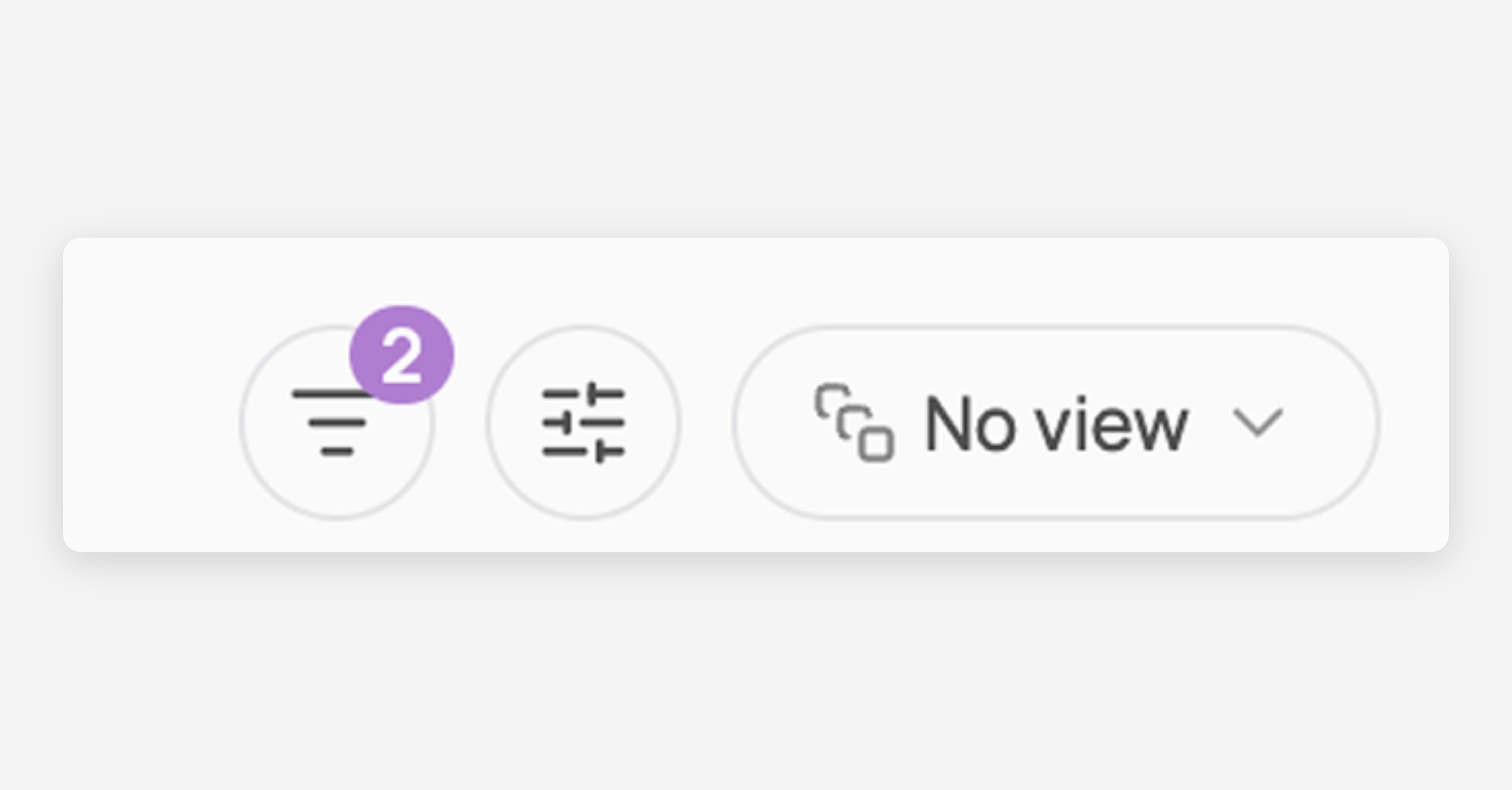
Click Save, and then, create new view.

Name your view, then choose its visibility:
Personal: only you can see and use it
Workspace: shared with everyone in your Corma workspace
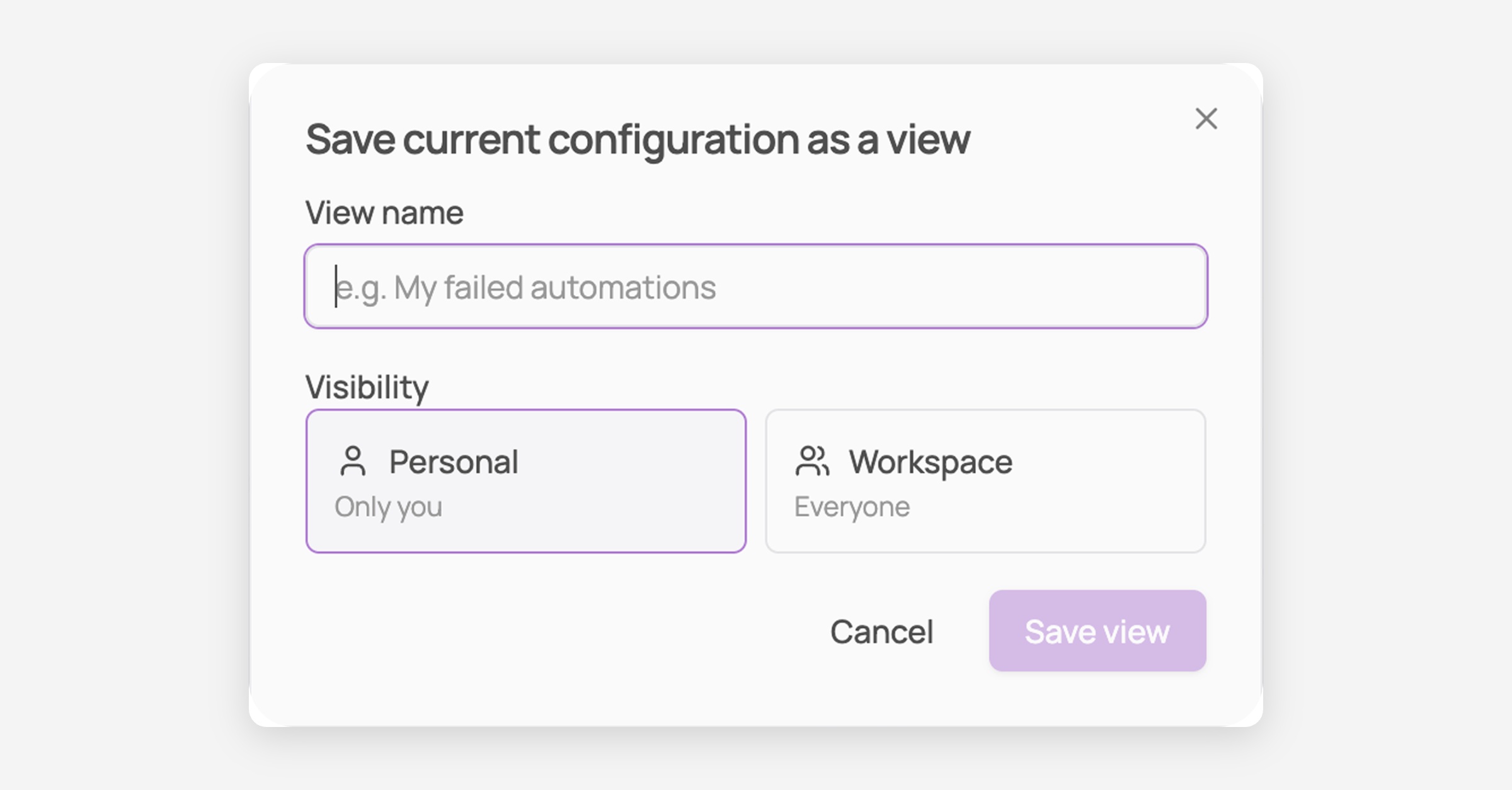
Click Save. Your new view becomes the active one and appears in the views dropdown.
Switch between views
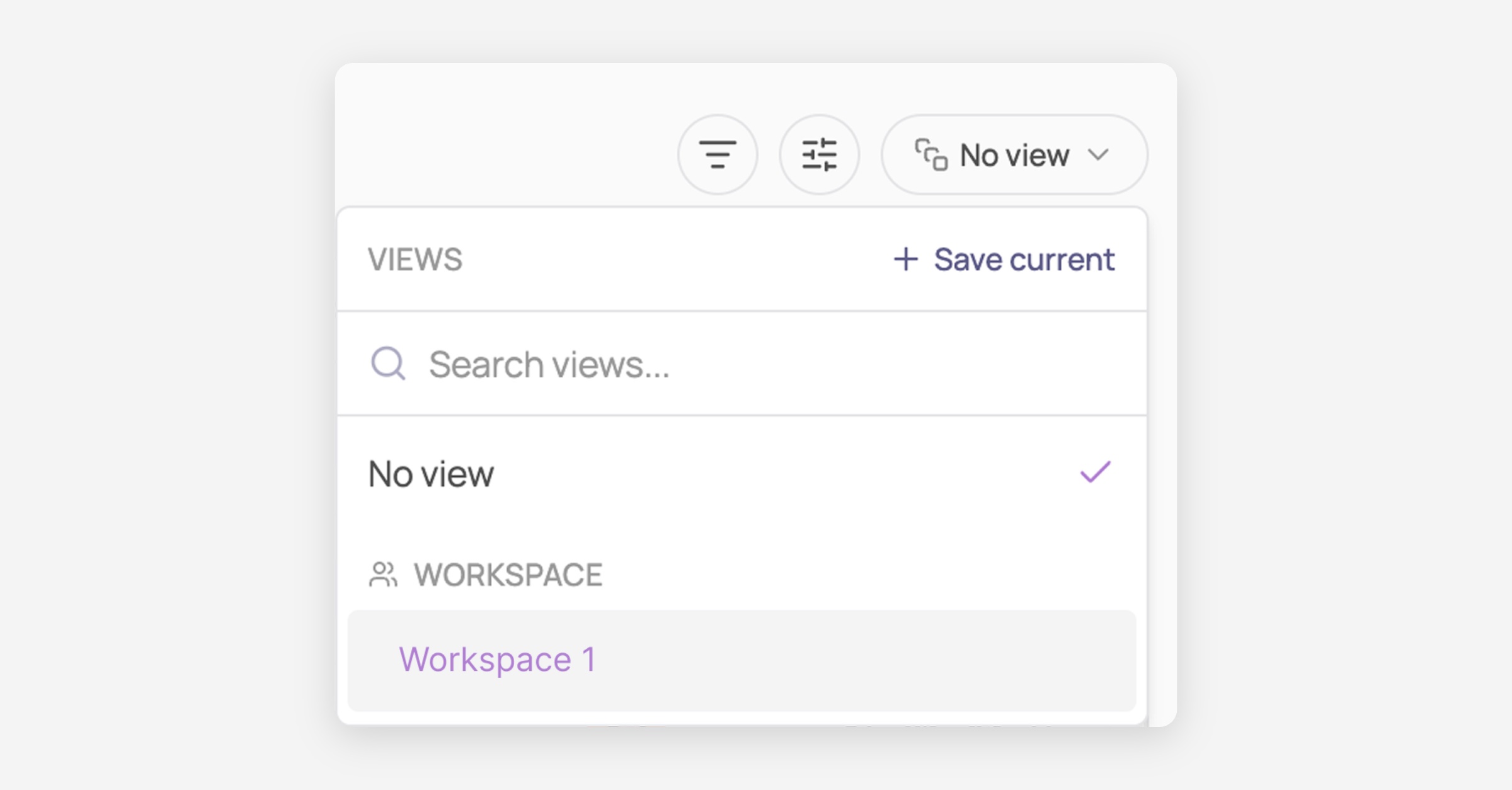
Click the views button in the toolbar. It shows the name of your current view, or No view.
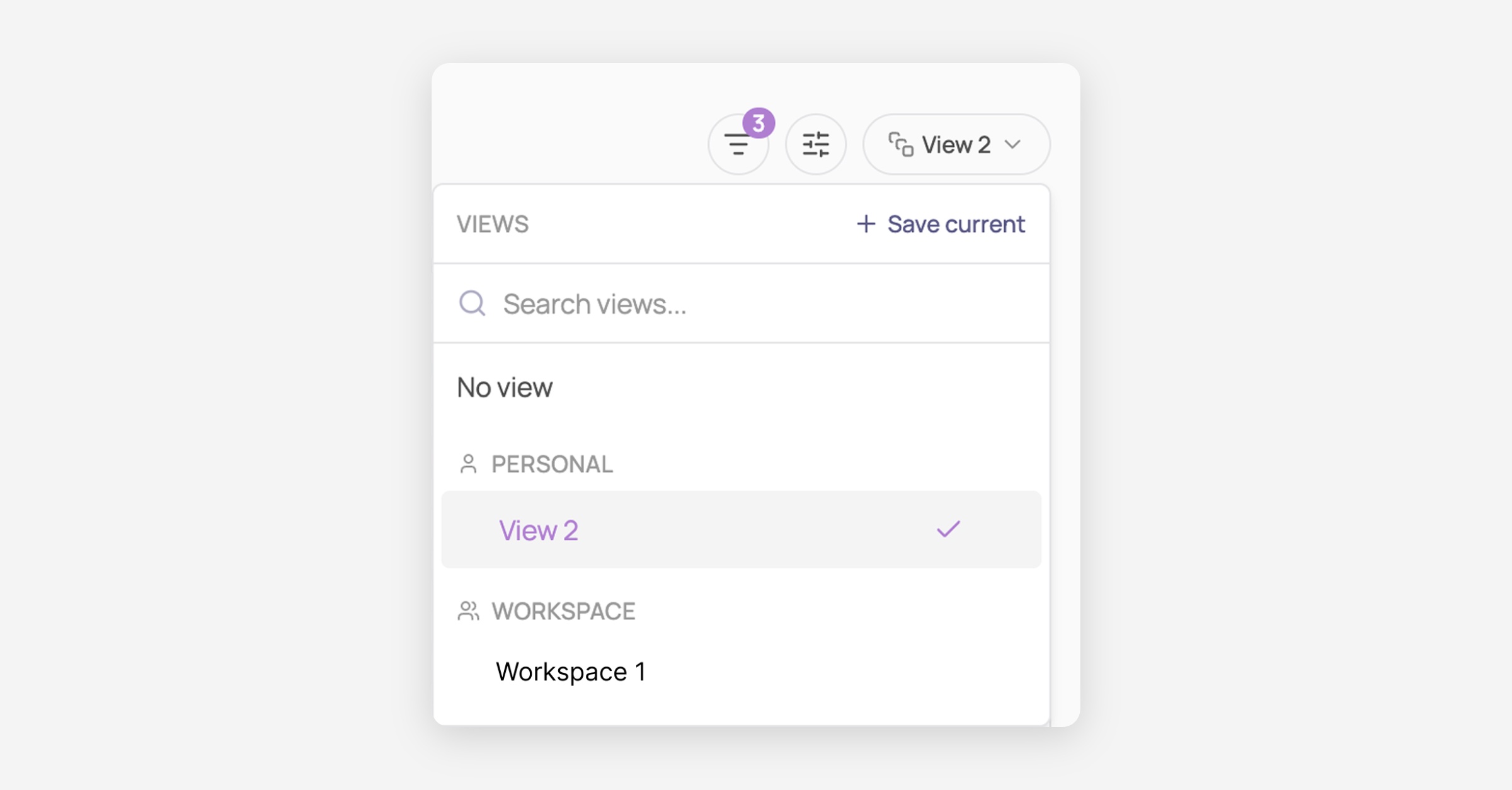
The dropdown lists No view at the top, then your Personal views, then the Workspace views.
Click a view to apply its filters and columns.
ℹ️ If your workspace has a lot of views, use the search box at the top of the dropdown rather than scrolling.
Make a view your default, or share it
Both live in the same menu.
Click the views button to open the dropdown.
Hover over the view you want, then click the … button at the right of its row.
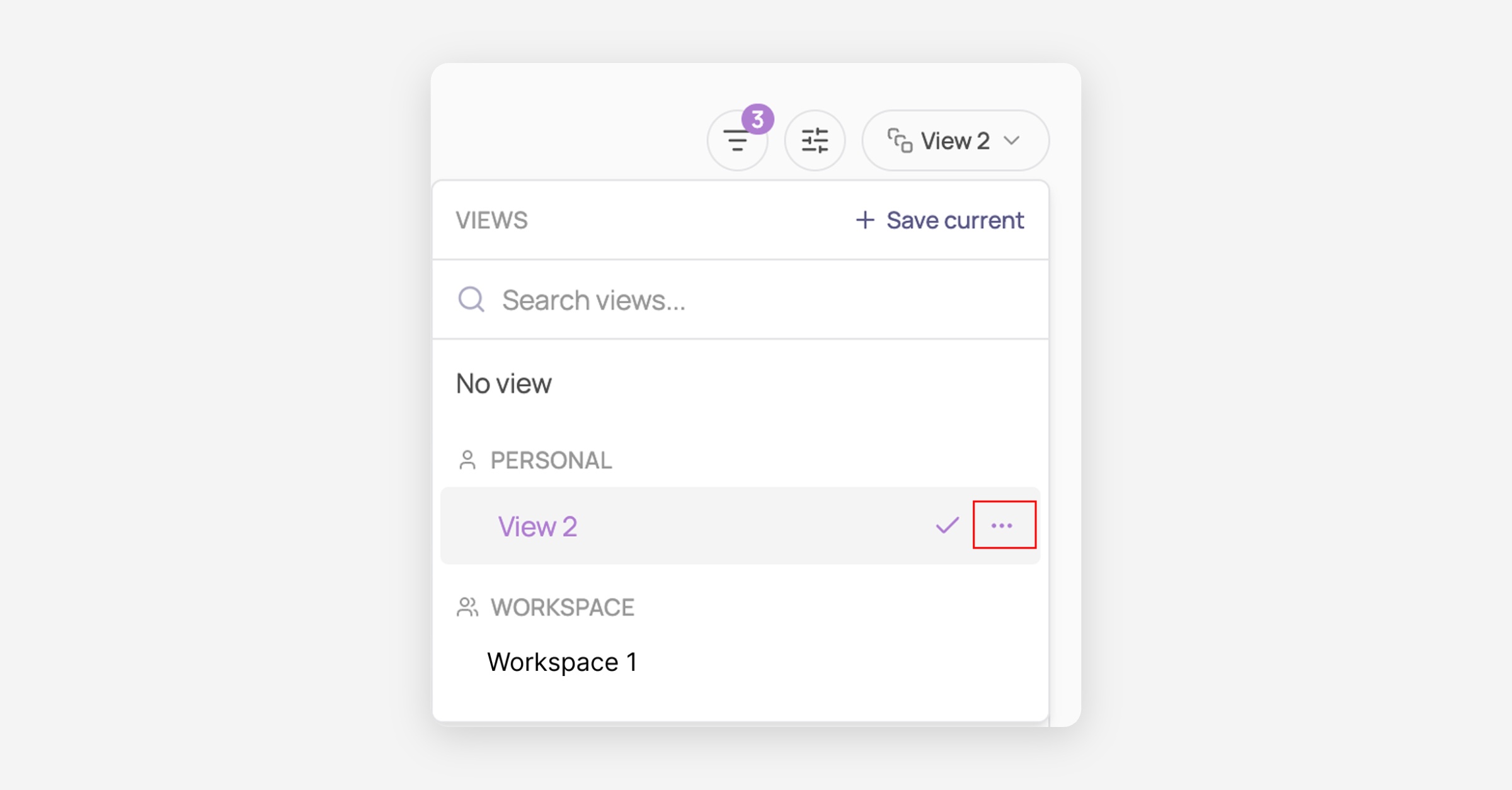
Choose an action:
Make default: this view is what Corma opens on when you land on the page
Share with workspace: moves the view from your Personal list into Workspace, where everyone can use it
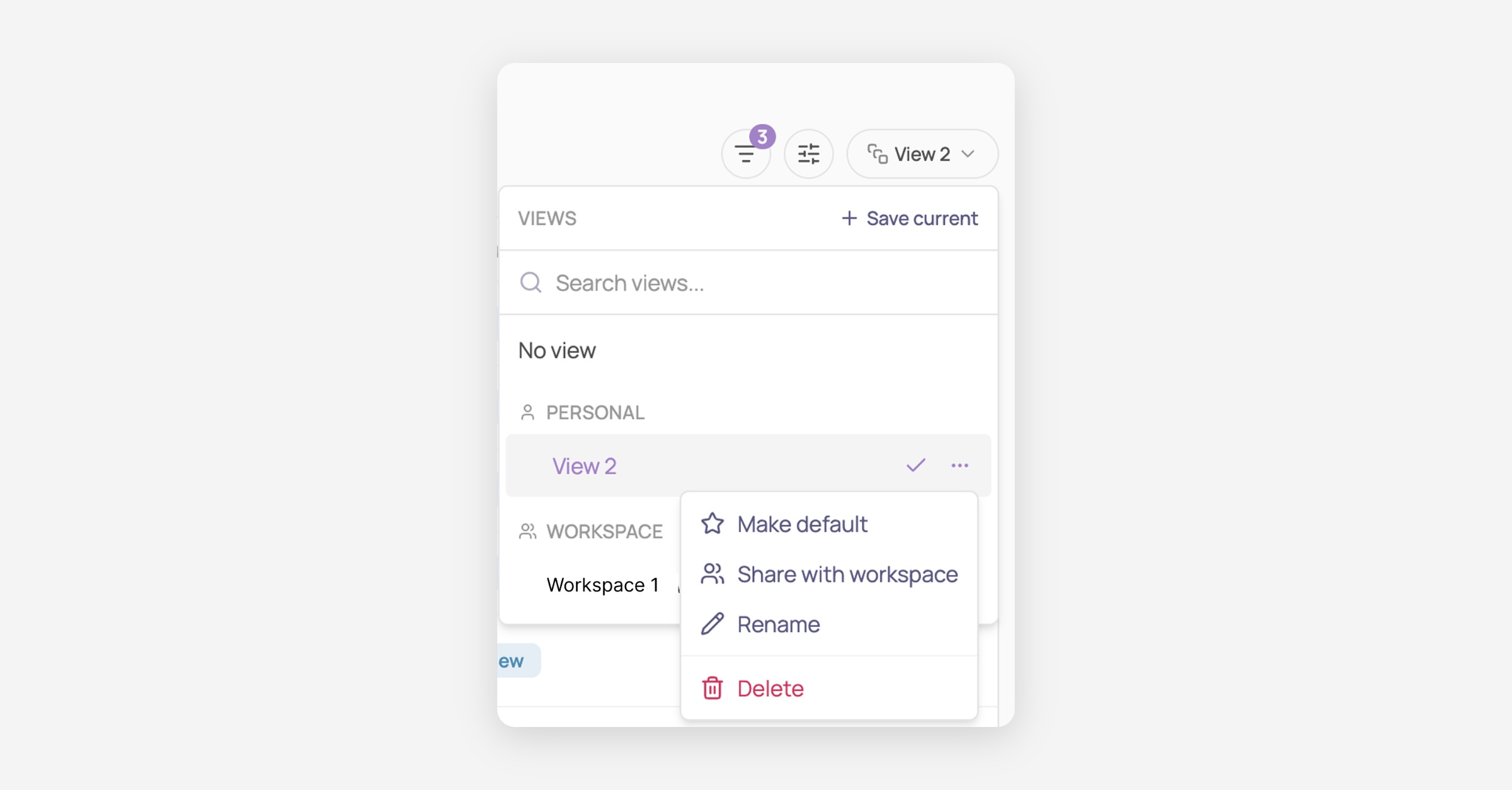
ℹ️Your default is personal to you. Setting a shared view as your default changes nothing for your colleagues.
ℹ️ Sharing is not permanent. If you created the view, its menu offers Move to personal to pull it back out of the workspace.
Save changes to a view
Selecting a view applies it, but you can keep working on top of it.
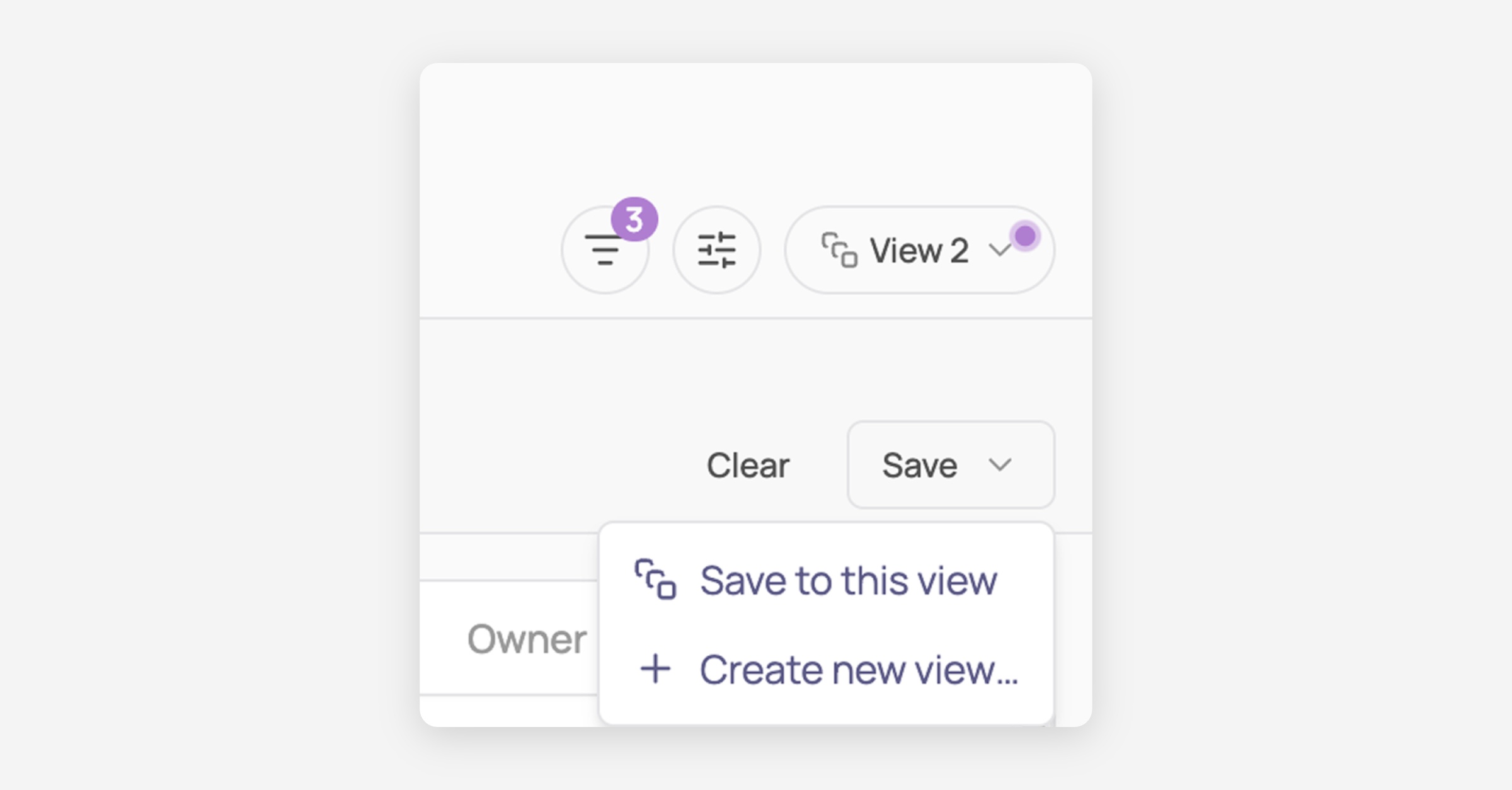
When your setup no longer matches what is stored, a dot appears on the views button. The changes are live on screen but not yet saved.

To save these changes, click Save, and, choose what to do with the changes:
Save to this view: updates the view you are on
Create new view: leaves the original untouched and stores your changes separately
ℹ️ You can also open the views dropdown and use Save modifications made to current view at the bottom.
ℹ️ To discard the changes, switch to another view or click Clear. Nothing is saved until you choose one of the two options above.
Rename, share, or delete a view
Open the views dropdown, hover over a view, and open its actions menu. Depending on your rights you will see:
Action | What it does |
|---|---|
Rename | changes the view's name |
Share with workspace | turns a personal view into one everyone can use |
Move to personal | turns a workspace view back into a private one. Creator only |
Make default | makes it the view you land on |
Delete | removes the view |
ℹ️ Workspace views can be renamed, updated and deleted by any admin, since they are meant to be maintained together.
ℹ️ Deleting the view you are currently using drops you back to No view.
Share a filtered page with a colleague
The page address carries the filters you have applied, so sending someone the link shows them the same filtered table.
It does not share the view itself. A personal view belongs to you only, and a colleague opening your link lands on No view with your filters applied. To let other people reuse a setup, save it as a workspace view so it appears in their own views list.
When a view no longer matches your data
A view stores the values you filtered on. If one is later deleted from Corma, for example an owner who has left or an app that was removed, that part of the filter stops working.
When this happens:
a warning icon appears next to the view in the dropdown
selecting it shows a short message saying part of the view is no longer valid
the rest of the view still applies, and the view shows as modified so you can save the cleaned-up version
ℹ️ Corma never rewrites a stored view on its own. It only changes when you explicitly save.
Was this helpful?