
How to filter and customize a table
The toolbar above every main table controls what you see. The funnel icon filters the rows, the sliders icon chooses which columns appear, and the views button keeps a setup for later. To save a setup instead of rebuilding it each time, see "How to create and manage saved views".
Filter a table
Click the funnel icon in the top right of the table. A dropdown opens listing every filter available on that page.
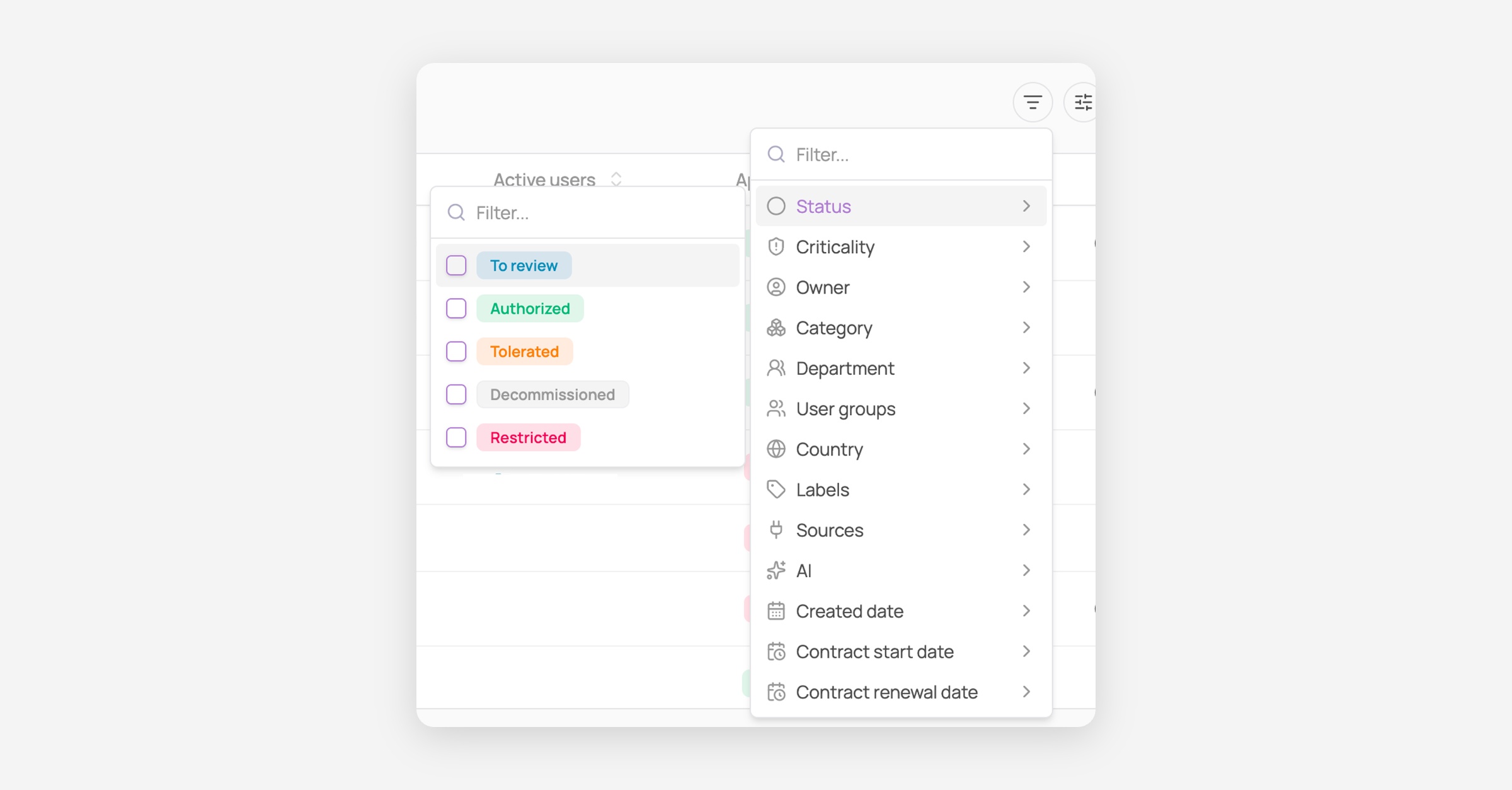
Pick the field you want to filter on, for example Labels, Status, or Criticality.
Choose the values you want to keep. The picker adapts to the field: a searchable checkbox list for fields like Labels or Status, a calendar for dates, and a minimum/maximum input for numbers.

The filter appears as a row below the table header, and the table updates immediately. Above it, Corma tells you how many rows match.
The funnel icon carries a small number showing how many filters are currently applied.
Read a filter
Each applied filter is made of four parts, left to right:
Part | What it is |
|---|---|
Field | what you are filtering on, for example Labels |
Operator | the rule being applied, for example contains |
Values | what you selected. Shows the value's name, or "2 selected" when you picked several |
✕ | removes this filter |
Change an operator
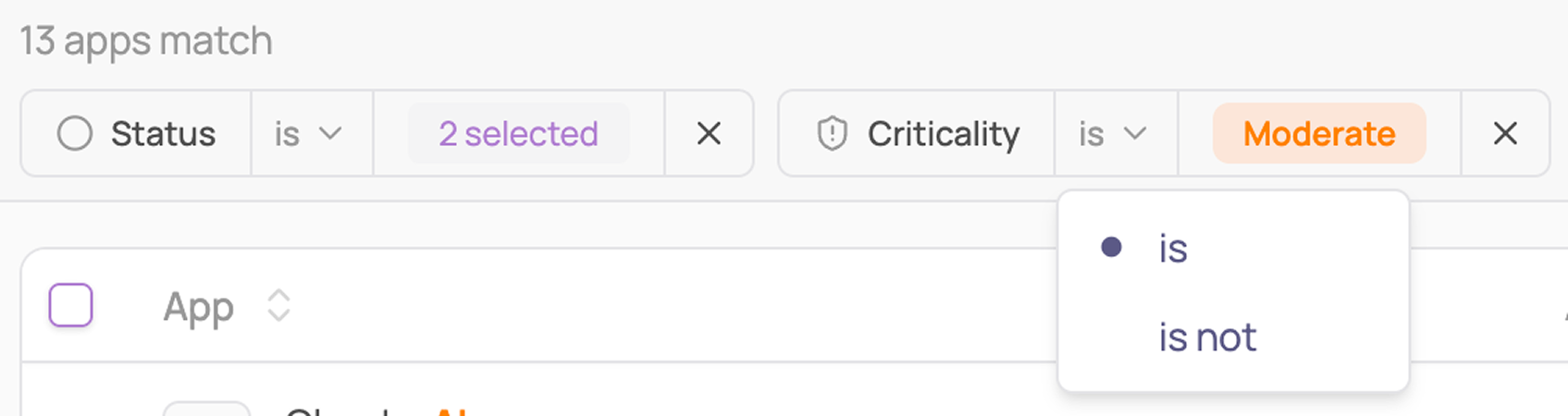
Click the operator to open its list, then pick the one you want.
The options depend on the field. Most fields offer is and is not. Fields that can hold several values at once, such as Labels, offer contains and does not contain instead. Date and number fields use ranges.
Add another filter
Click the + button at the end of the filter row, then pick a field and its values exactly as before.
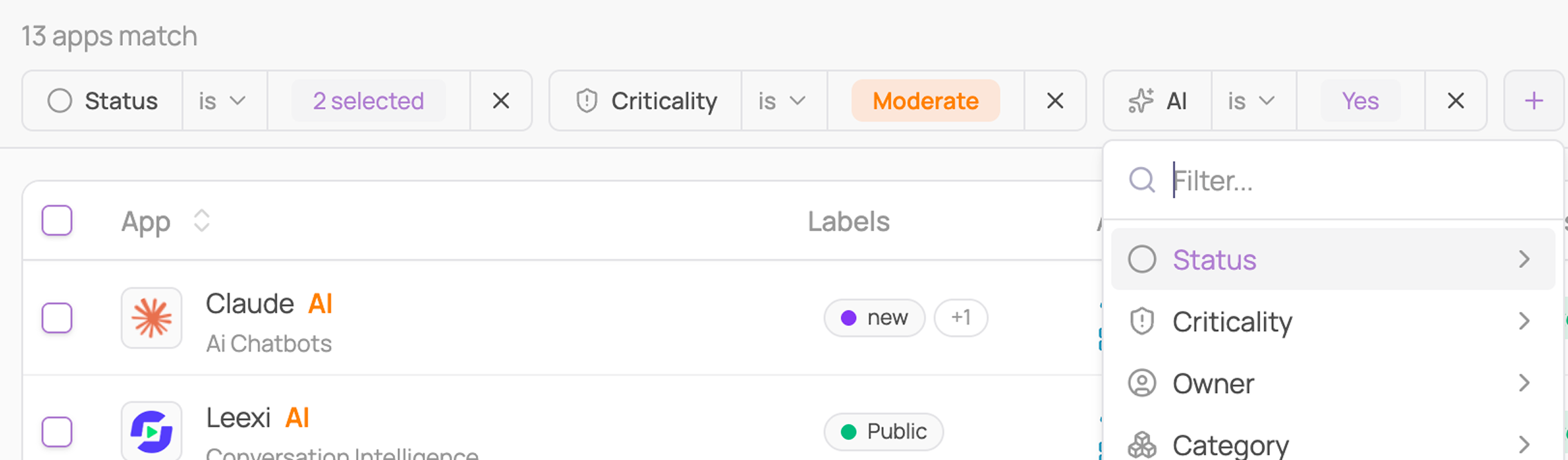
Filters stack: a row has to match all of them to appear.
Apply Labels more than once
Every field can be filtered on once, and its operator covers all the values you pick. Labels is the exception: because an app can carry several labels at the same time, you can add it more than once with a different operator each time.
Say you want apps labelled SAML, but not the ones also labelled Internal.
Click the funnel icon, choose Labels, and tick SAML.
Click the + button and choose Labels again.
On the new filter, click the operator, switch it to is not, and tick Internal.

Filters stack, so an app has to satisfy all of them to appear.
Remove filters
Remove one filter with the ✕ at its right.
Remove them all with Clear, at the right of the filter row.
Inside a saved view, Clear returns you to that view's filters rather than to an empty table.
Choose which columns to display
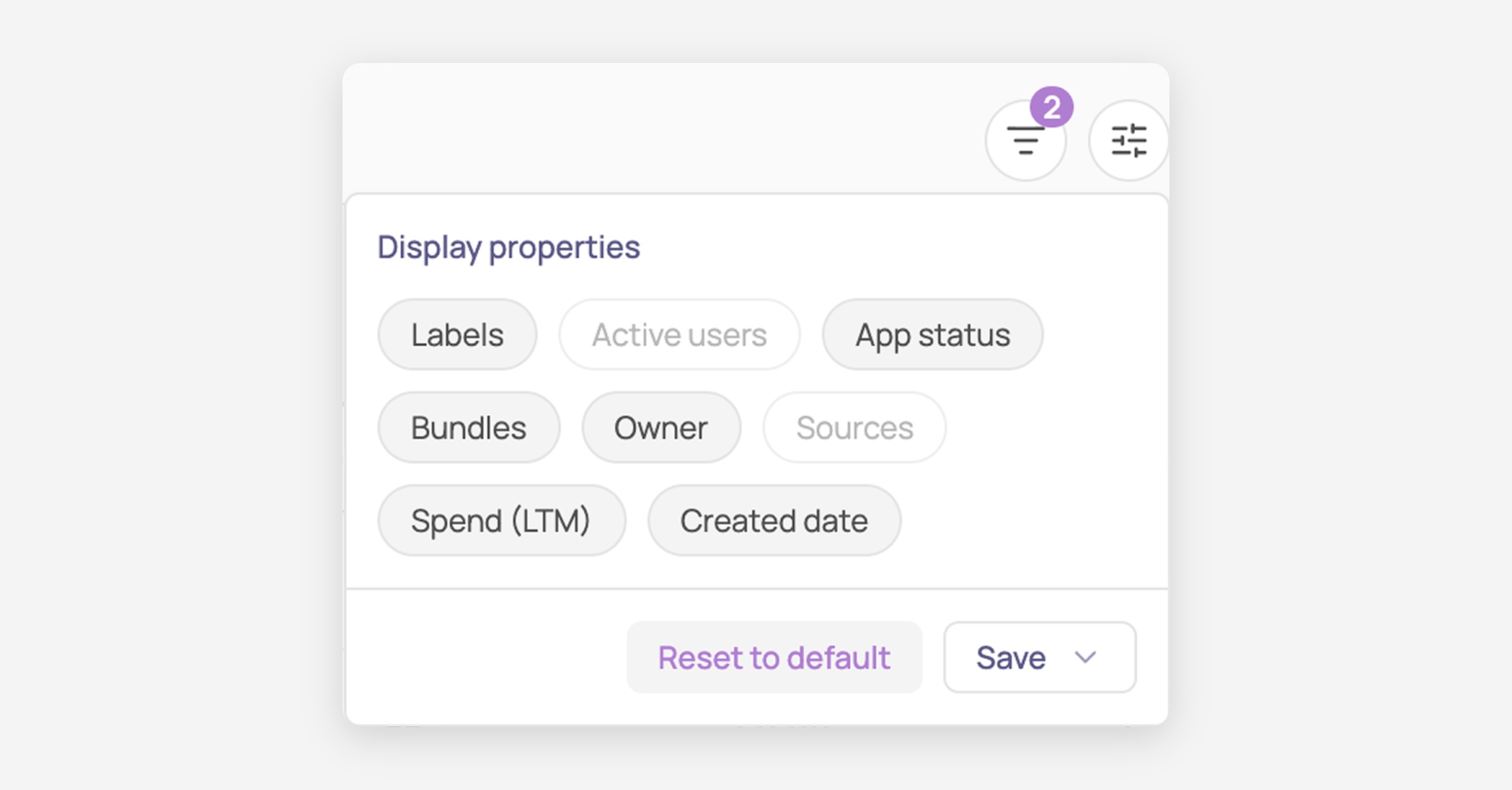
Click the sliders icon, next to the funnel.
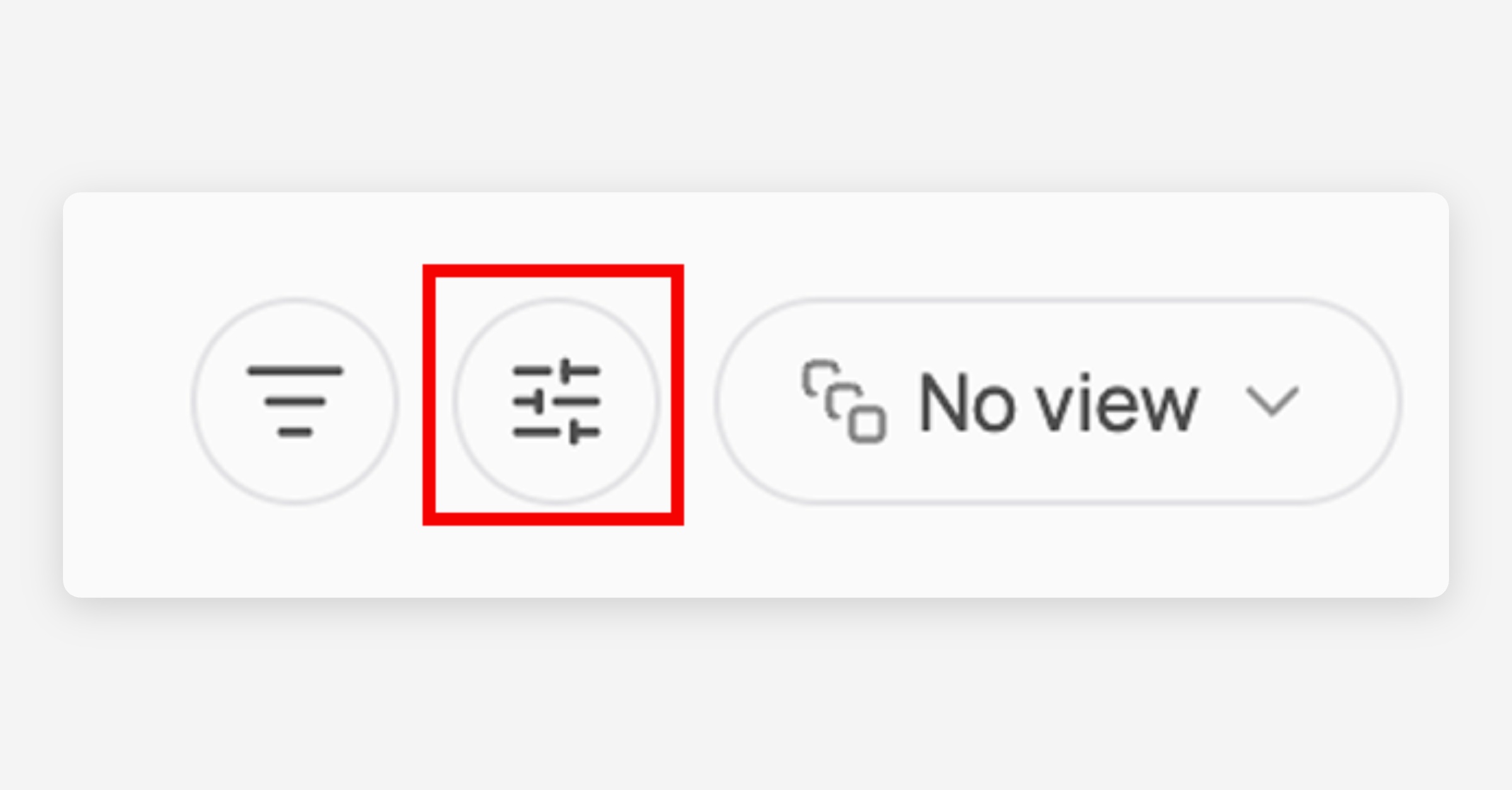
Toggle columns on or off. The table updates immediately.
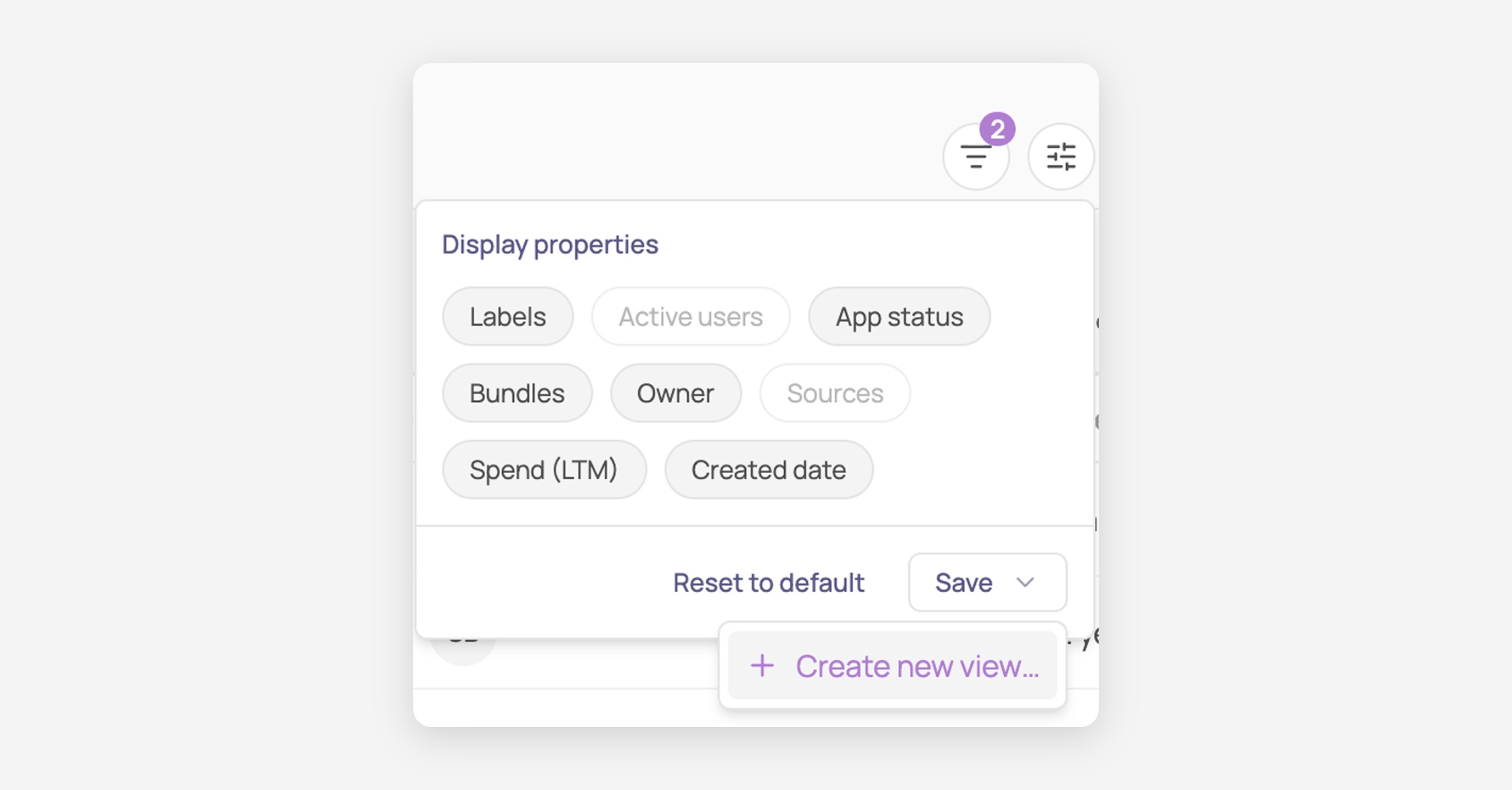
Click Reset to default to return to Corma's standard columns for that page.
Keep your setup
Filters and column choices last only while you are on the page. To keep them, save them as a view: see How to create and manage saved views.
Was this helpful?