
How to import contracts into Corma
Add a contract to any app by uploading the file and letting Corma's AI extract the details, or by entering everything yourself.
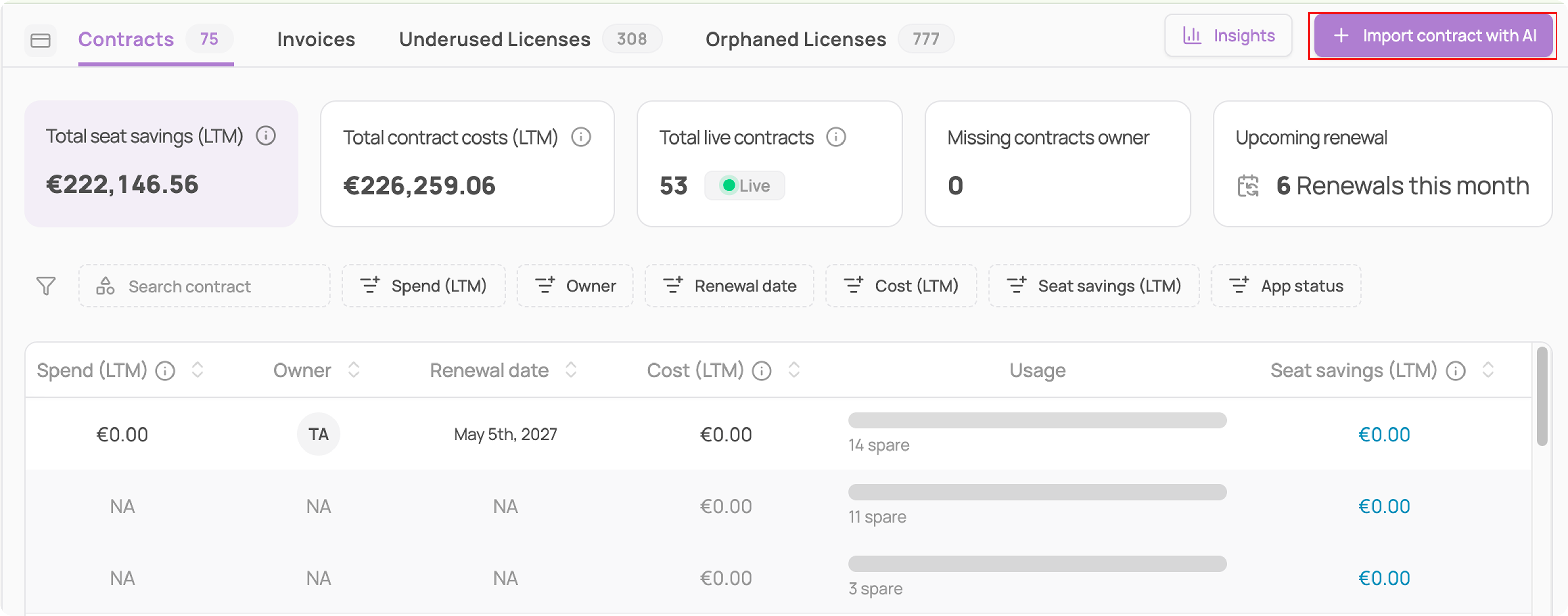
Click "Import contract" from the top right of the main Contracts page
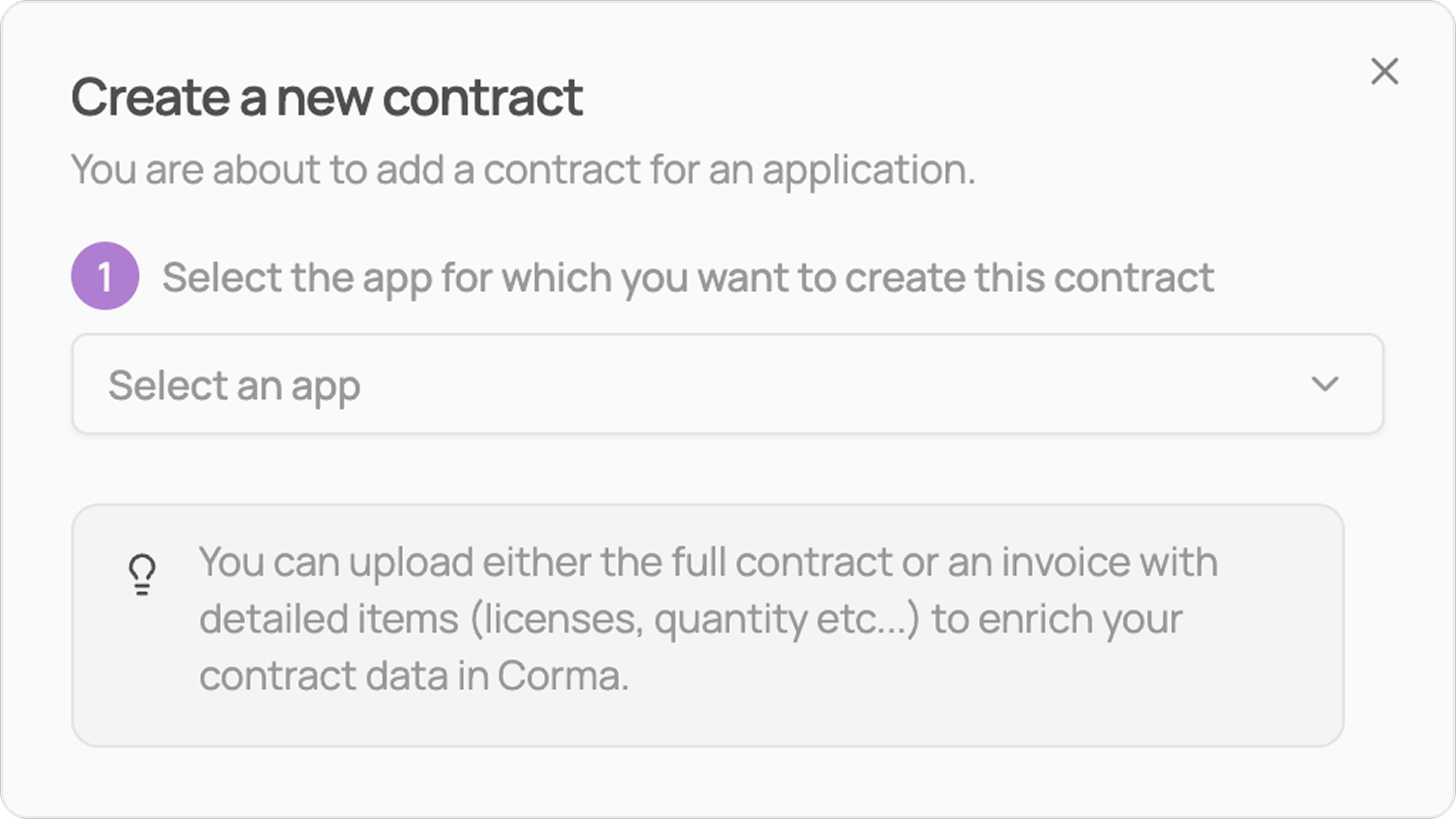
Select the app this contract belongs to
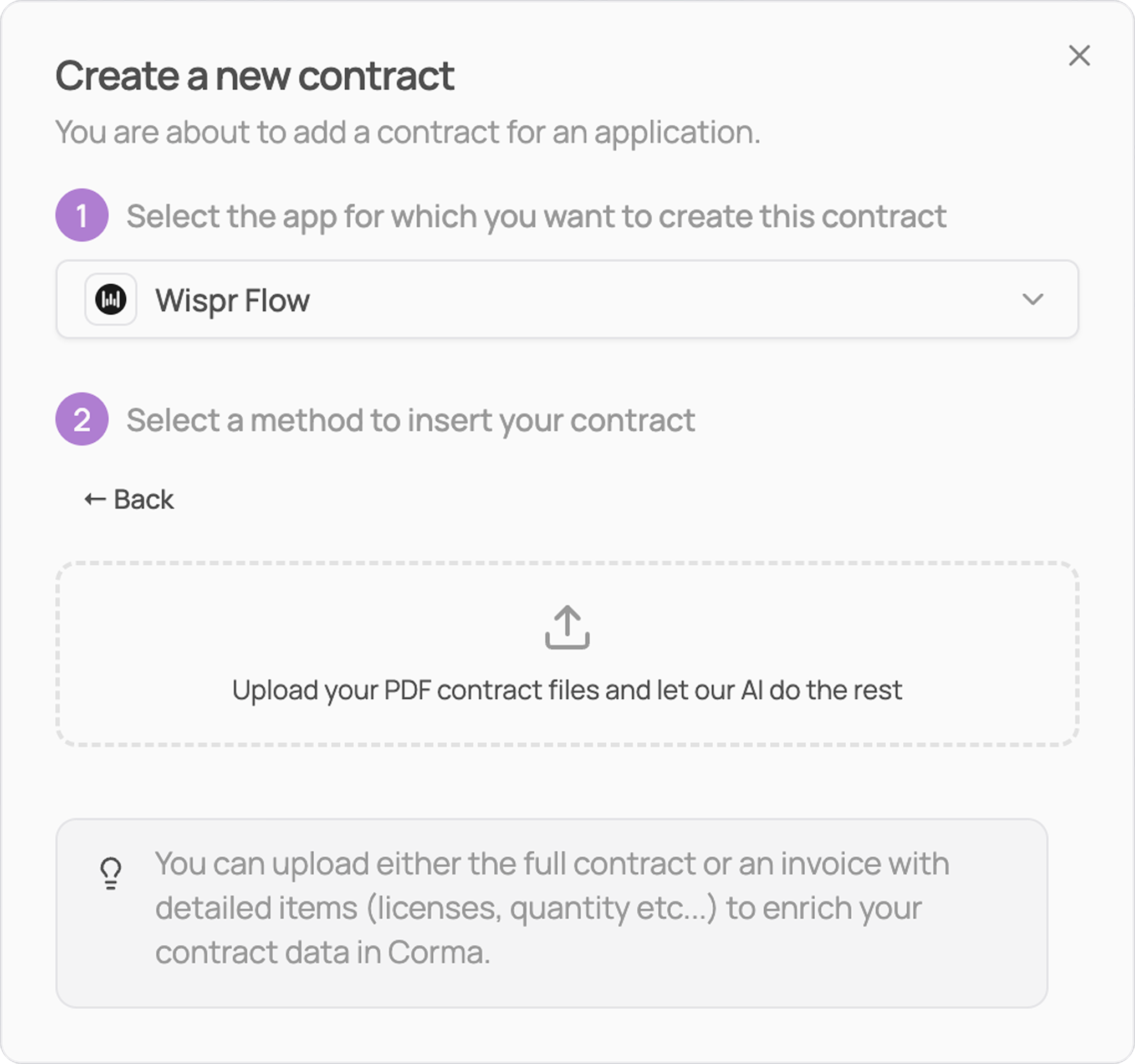
Choose how to add it:
Option 1: Import with AI
Click "Import with AI"
Upload your file. You can upload either the full contract, or an invoice with detailed line items (licenses, quantity, etc.) — Corma reads either type and extracts the relevant data automatically: contract owner, cost, renewal dates, and line items.
Option 2: Create manually
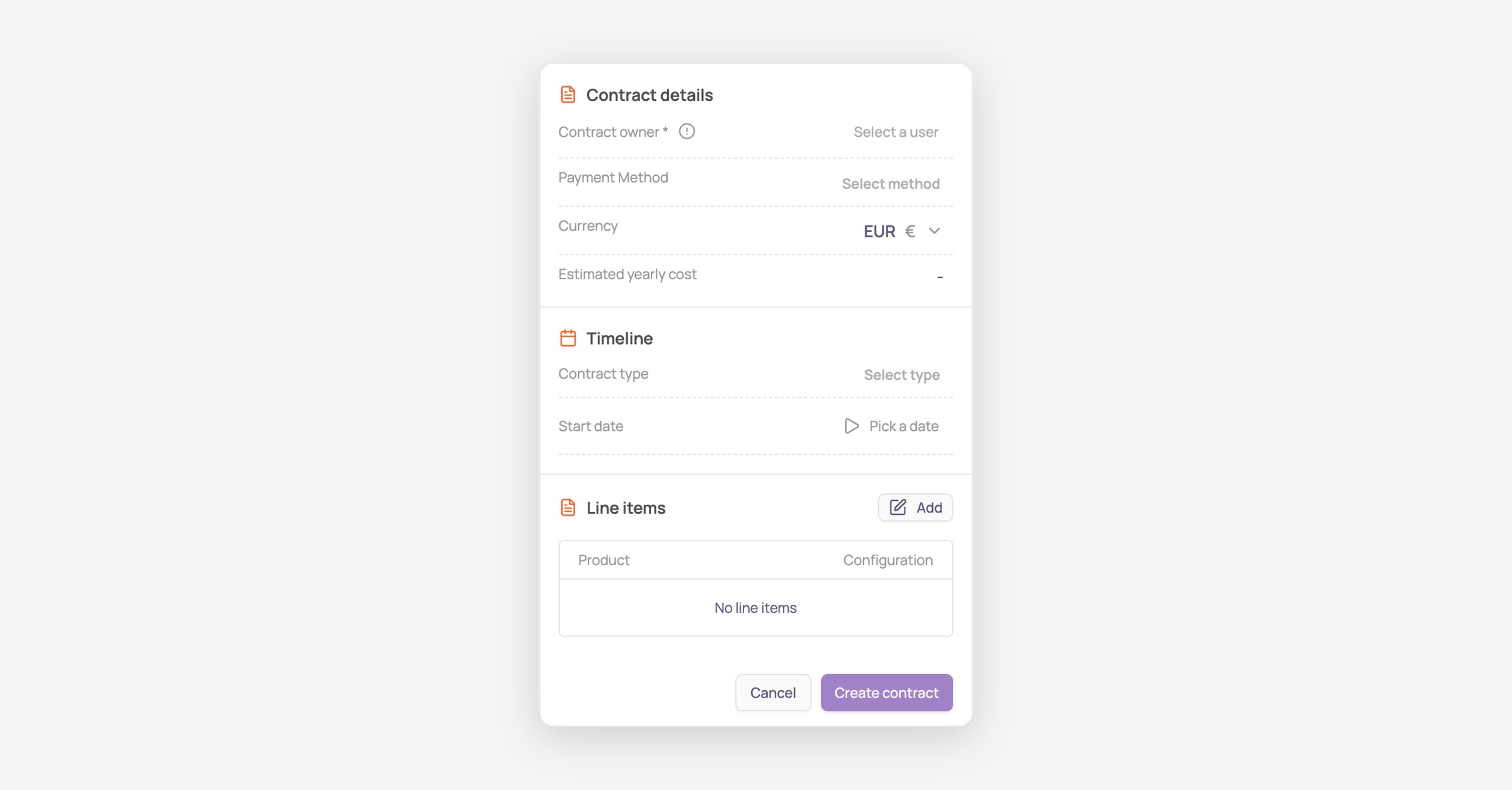
Click "Add manually" (from the app page) or "Create manually" (from the Contracts page selection flow) — same form either way
Fill in the contract details: contract owner, payment method, currency, and estimated yearly cost
Set the timeline: contract type and start date
Add line items — click "Add" next to Line items, then "Add item" for each product/seat you want to track, with its cost and configuration
Click "Create contract" to save
Was this helpful?